Introduction
Overview
When the built-in buttons of intercom devices are insufficient or special functions are required, external buttons can be used for function expansion. This document provides detailed instructions on how to connect external buttons to intercom devices for speed dial functionality.
Applicable Models
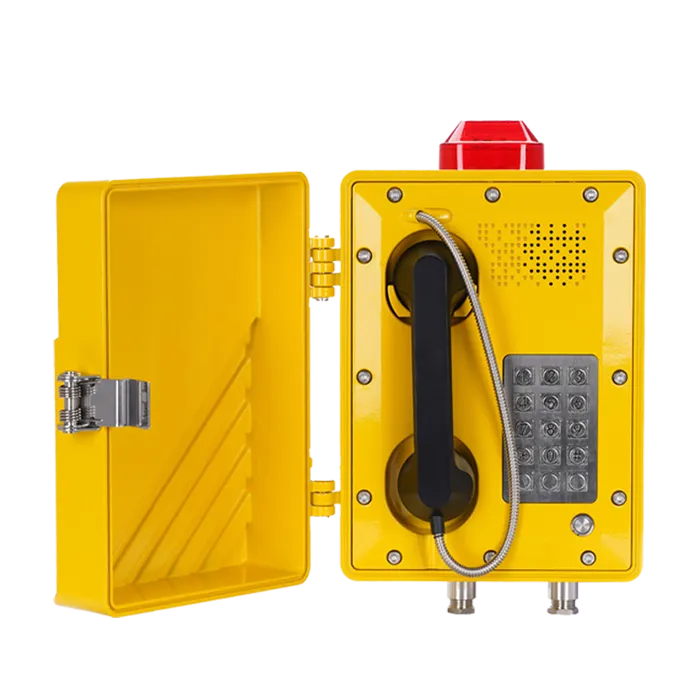
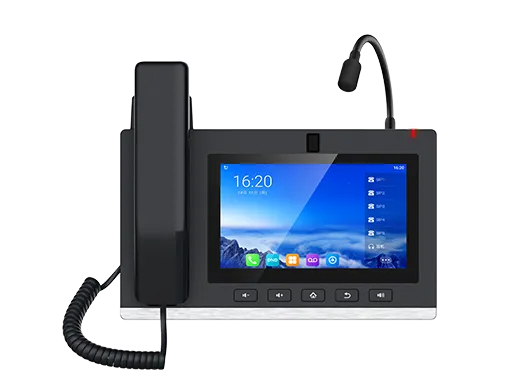
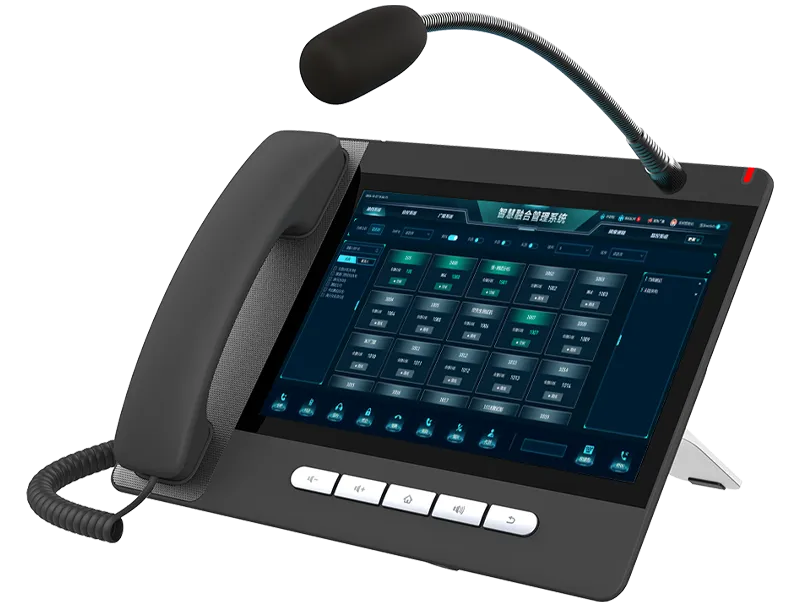
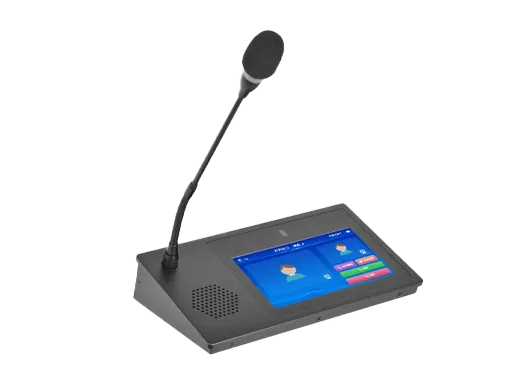
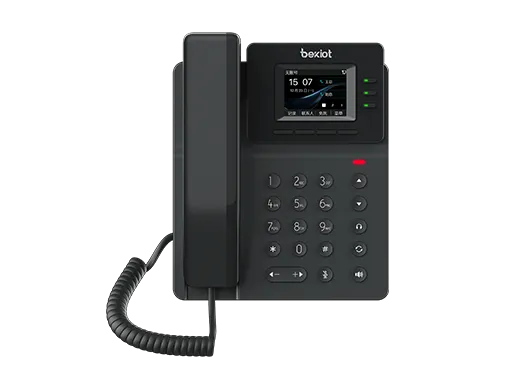
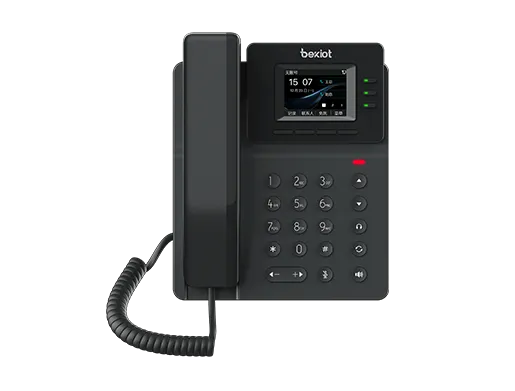
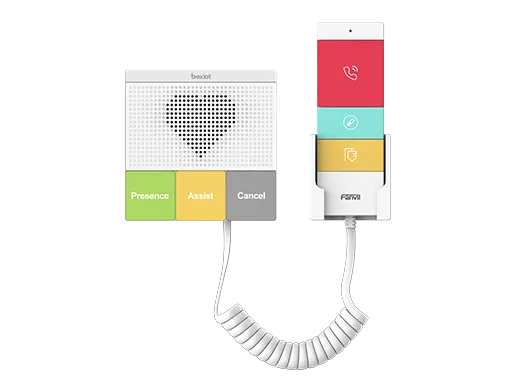
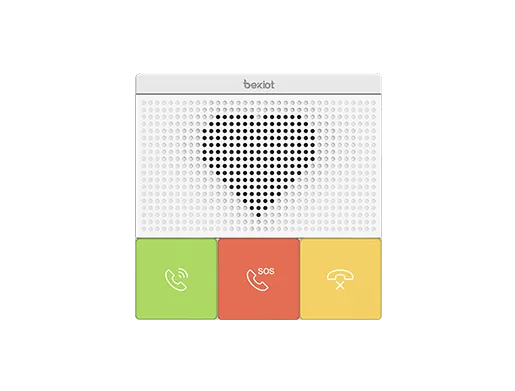
BHP-SOS10, BHP-SOS10V, BHP-SOS10D, BHP-SOS11, BHP-SOS11V, BHP-SOS16V.
Prerequisite Preparation Tools
① One of our BHP-SOS10 series devices (using BHP-SOS10 as an example), one PoE switch (or DC power supply). Connect the device to the switch.
② One debugging computer connected to the same switch to ensure network connectivity between the computer and the device.
Device and Computer Connection Diagram
Connect the BHP-SOS10 to the switch, and connect the computer to the same switch to ensure network communication between the computer and the device. The connection diagram is shown in Figure 1.
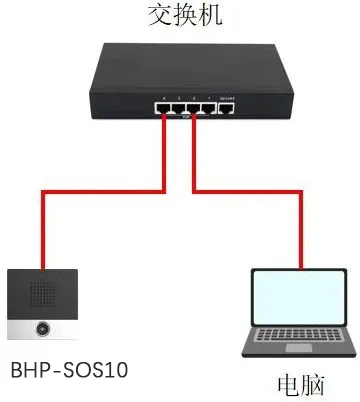
Figure 1 Device and Computer Connection Diagram
Speed Dial via External Button on Input Port
To implement speed dial via the input port, you need to connect a button to the input port and configure settings on the device's Web interface. This section provides detailed instructions for the configuration.
Connect External Button to Input Port
External Button Connection: Use a terminal block on the device's input port and connect the button to the corresponding input port terminal, as shown in Figure 2 (using i10 as an example):
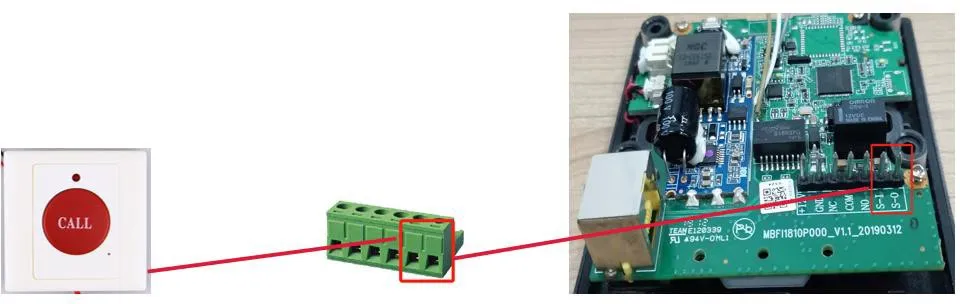
Figure 2 External Button Connection Diagram
Configure Speed Dial for Input Port
After connecting the button, you need to configure the settings on the device's Web interface. The detailed configuration steps are as follows:
(1) Log in to the device: Enter the device's IP address in a browser, then enter the username and password to log in (default username and password are both admin);
(2) After logging in, navigate to Shortcuts -- Shortcut Settings and configure as shown in Figure 3;
① Type: Select Memory Key;
② Name: Customize;
③ Value: Enter the peer IP address or SIP account (IP address is used as an example here);
④ Subtype: Select Speed Dial;
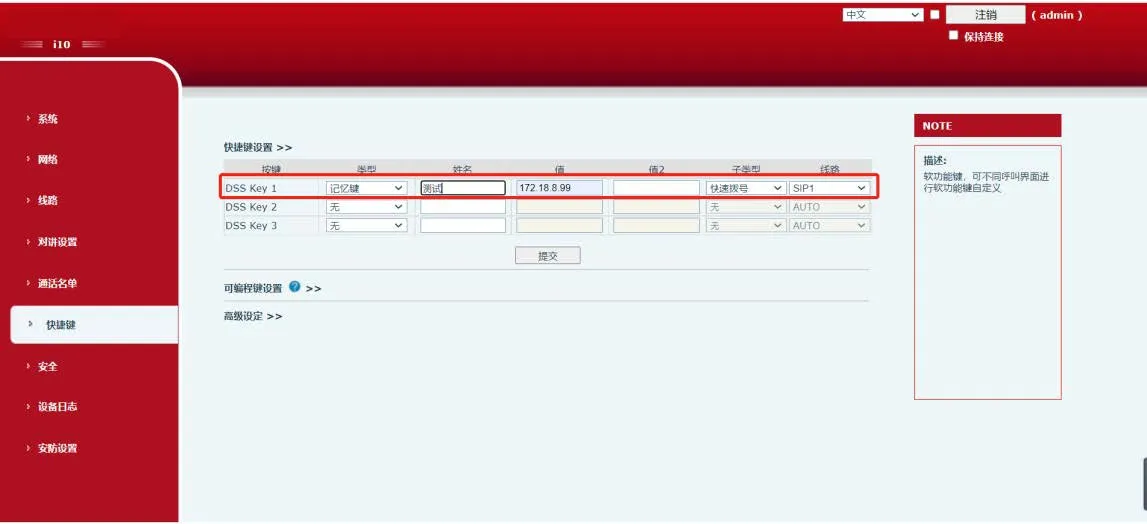
Figure 3 Shortcut Configuration Diagram
(3) After configuring the shortcut, go to the device's Security Settings -- Input Port Settings, check Input 1, and select the configured DssKey1 from the shortcut dropdown menu. The speed dial function will be activated after configuration, as shown in Figure 4.
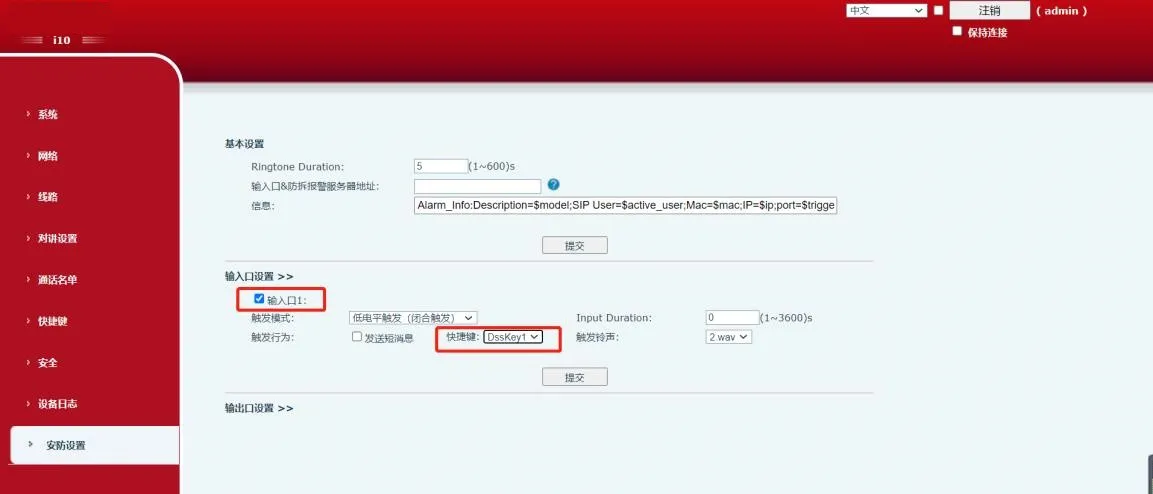
Figure 4 Input Port Configuration Diagram