touchpoint

In addition to terminal devices, all personnel, places, and things connected to the network should also be considered.

View Details

resource

Understand best practices, explore innovative solutions, and establish connections with other partners throughout the Baker community.

×

touchpoint

touchpoint

In addition to terminal devices, all personnel, places, and things connected to the network should also be considered.

Learn more

resource

resource

Understand best practices, explore innovative solutions, and establish connections with other partners throughout the Baker community.

Contact Us
Industrial IP Phone SIP Hotspot Introduction

Introduction

Overview

SIP Hotspot is a simple and practical feature with easy configuration. It implements group ringing and expands the number of available SIP accounts.

Set Phone A as the SIP Hotspot, and other phones (B, C) as SIP Hotspot Clients. When someone calls Phone A, A, B, and C will ring simultaneously. When any phone answers the call, all others stop ringing—concurrent answering is not supported. When B or C makes outgoing calls, they use the SIP number registered by Phone A.

The GP210i can act as a mini PBX, working with other Fanvil products (e.g., BHP-SOS10) to manage extension devices, including remote reboot and firmware upgrade.

Applicable Models

This feature is supported from firmware version V25 onwards. Supported phone models:

  1. BX Series Phones
  2. BH Series Phones
  3. Industrial Series Phones

Feature Example

For a house with phones in the bedroom, living room, and bathroom: Without SIP Hotspot, you need separate SIP accounts for each phone. With SIP Hotspot, only one account is needed for all phones, simplifying management.

Without SIP Hotspot: Only the called phone rings.
With SIP Hotspot: All phones ring simultaneously (group ringing). When one phone answers, others stop ringing.

Usage Instructions

SIP Hotspot Configuration

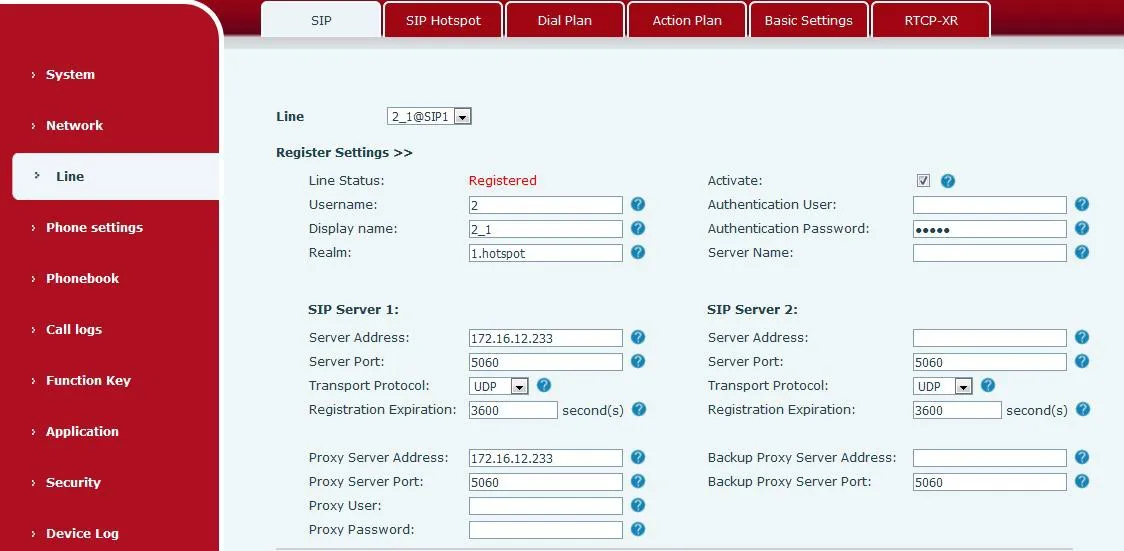
Registered Number Mode

The hotspot server supports SIP registration and distributes extension numbers to clients.
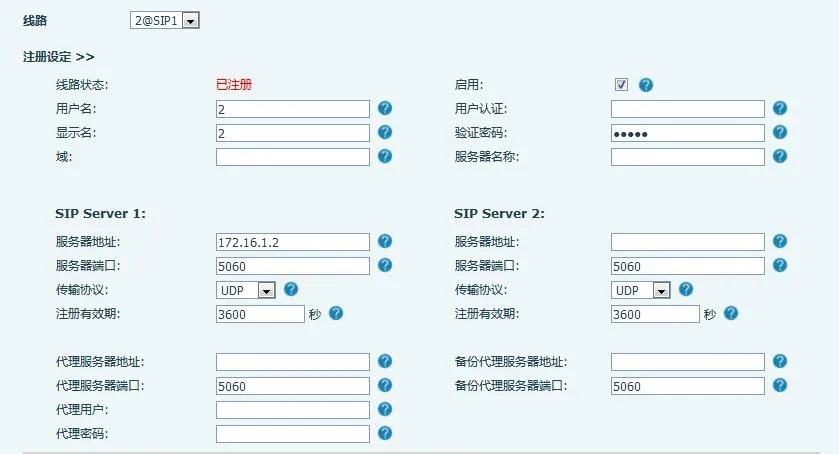
Hotspot Server Registered Number Interface

Non-Registered Number Mode (Only X56 Series Supported)

The hotspot server can work without SIP registration while distributing extensions. Number and Server fields are mandatory in this mode.
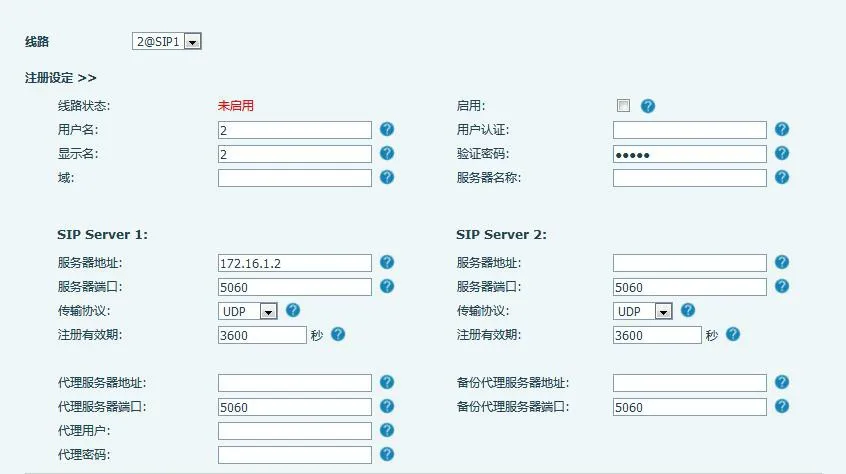
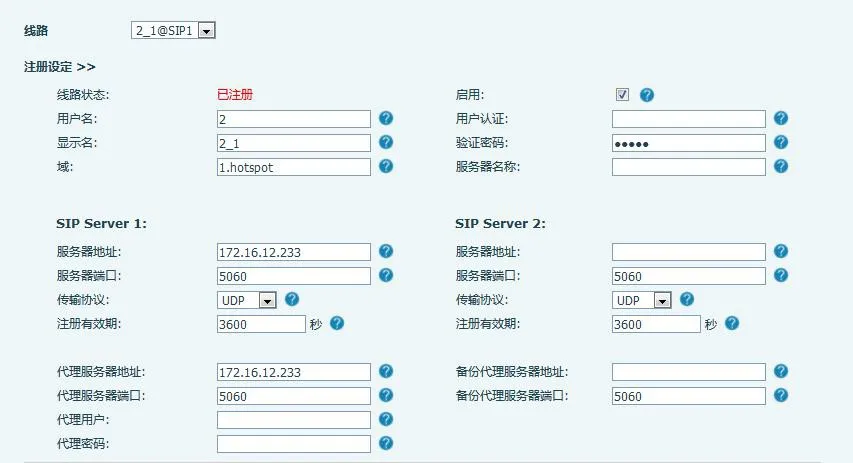
Phone as Hotspot Server (Non-Registered)

Note: Enable "Dial Without Registered" to allow the server to call extensions.

Configuration path shown below:
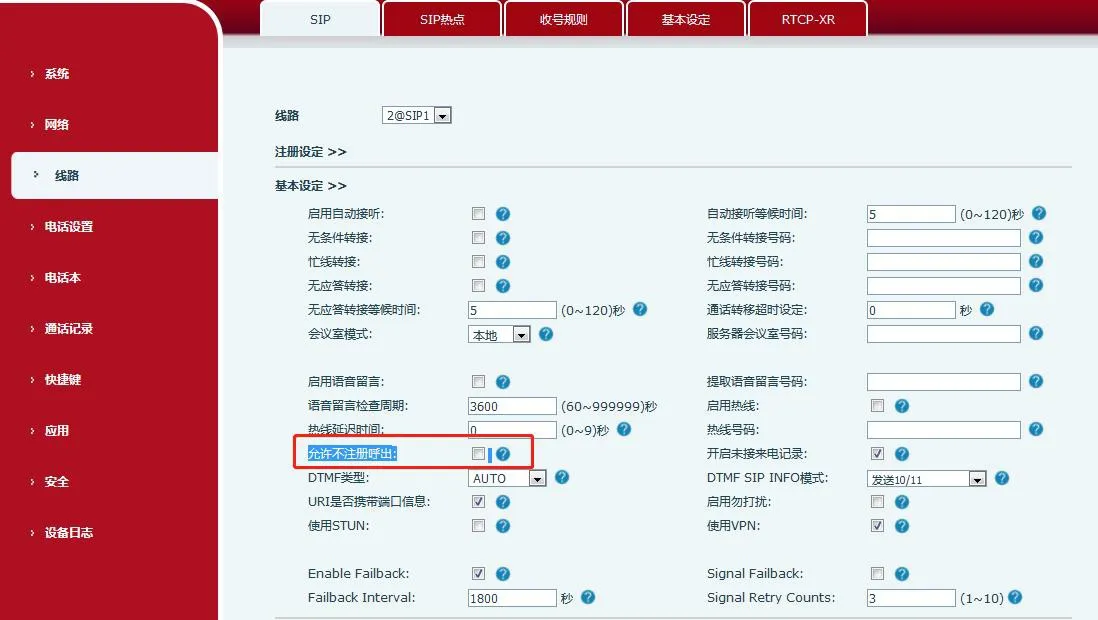
Server Configuration Item Location

SIP Hotspot Setup (BX6 Phone Example)

  1. Enable Hotspot: Set "Enable Hotspot" to Enabled.
  2. Mode: Select Hotspot (device acts as SIP Hotspot Server).
  3. Monitor Type: Choose Broadcast or Multicast. Use Multicast to reduce network broadcast packets. Server and Client must use the same type.
  4. Monitor Address: Multicast IP for server/client communication (required for Multicast only; Broadcast uses default WAN IP broadcast).
  5. Local Port: Custom communication port (must match on server and clients).
  6. Name: Set a name for the SIP Hotspot.
  7. External Ringing Mode: ALL (Master + Extensions ring), Extension (Only Extensions ring), Master (Only Master rings).
  8. Line Settings: Enable SIP Hotspot on selected SIP lines.
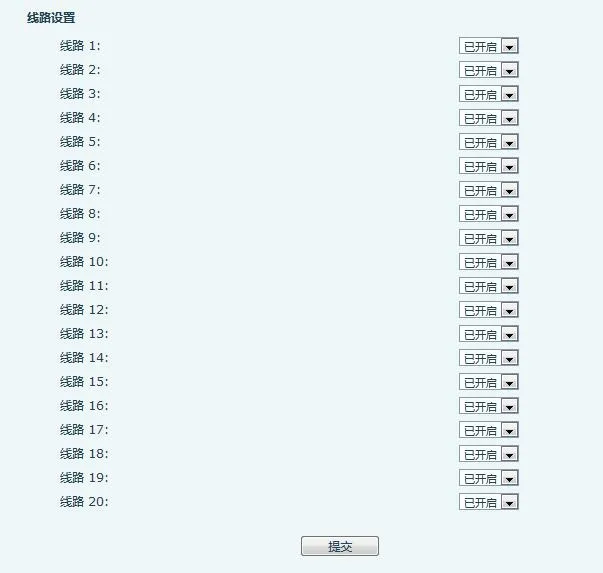
Line Settings Interface

  1. Connected Devices: Lists online clients and their aliases (extension numbers).
Connected SIP Hotspot Devices List

Note: For GP210i as Hotspot Server, see Section 2.2.

GP210i Hotspot Server Configuration

Server Settings

When GP210i acts as Hotspot Server, you can configure an Extension Prefix:

  • Enable/disable prefix per SIP line
  • Final extension number = Prefix + Assigned Extension Number

Example: Prefix=8, Extension=001 → Final Number=8001
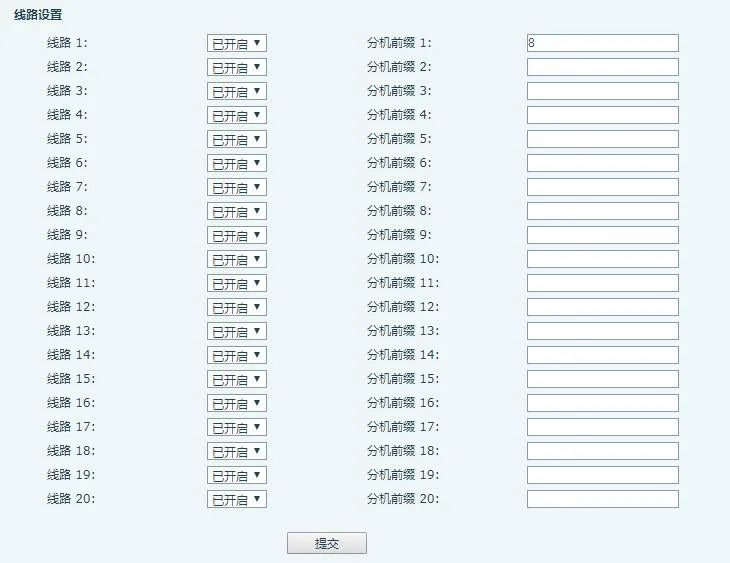
Extension Prefix Settings Interface

Hotspot Extension Management

Note: When GP210i is the server, manually move devices from "Unmanaged Extensions" to "Managed Extensions".

Managed extensions support remote reboot, upgrade, and group ringing. Management Mode: 0=Unrestricted access, 1=Allowed devices only.

1. Unmanaged Extensions
The server auto-assigns accounts to clients and lists them here.

Unmanaged Extensions Interface

  1. MAC: Device MAC address
  2. Model: Device model
  3. Version: Firmware version
  4. IP: Device IP address
  5. Ext: Assigned extension number
  6. Status: Online/Offline
  7. Registered Number: Master SIP account
  8. Delete: Remove device
  9. Move to Managed: Grant management permissions

2. Managed Extensions
Supports reboot, upgrade, edit, grouping, and deletion.

Managed Extensions Interface

  1. Extension Name: Device label
  2. MAC: MAC address
  3. Model: Device model
  4. Version: Firmware version
  5. IP: IP address
  6. Ext: Extension number
  7. Group: Assigned group
  8. Status: Online/Offline
  9. Registered Number: Master SIP account
  10. Edit: Modify name/MAC/ext/group
  11. Add: Manually add device (MAC required)
  12. Delete: Remove device
  13. Upgrade: Remote firmware upgrade
  14. Reboot: Remote reboot
  15. Add to Group: Assign to group
  16. Move to Unmanaged: Revoke management

3. Hotspot Groups
Dial the group number to trigger group ringing for all members.

  1. Name: Group label
  2. Number: Group ringing number
  3. Edit: Modify group
  4. Add: Create new group
  5. Delete: Remove group

Extension Upgrade

To upgrade managed devices, enter the Upgrade Server URL and confirm. The device will download and update firmware.
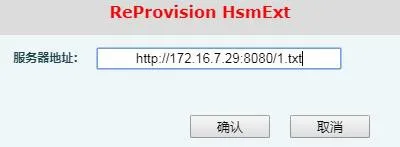
Extension Device Upgrade Interface

SIP Hotspot Client Setup

Take BX6 as Client: No manual SIP account configuration required. The client auto-obtains settings from the hotspot.

  1. Set Mode to Client
  2. Match all other settings (Monitor Type/Port/Address) with the Hotspot Server
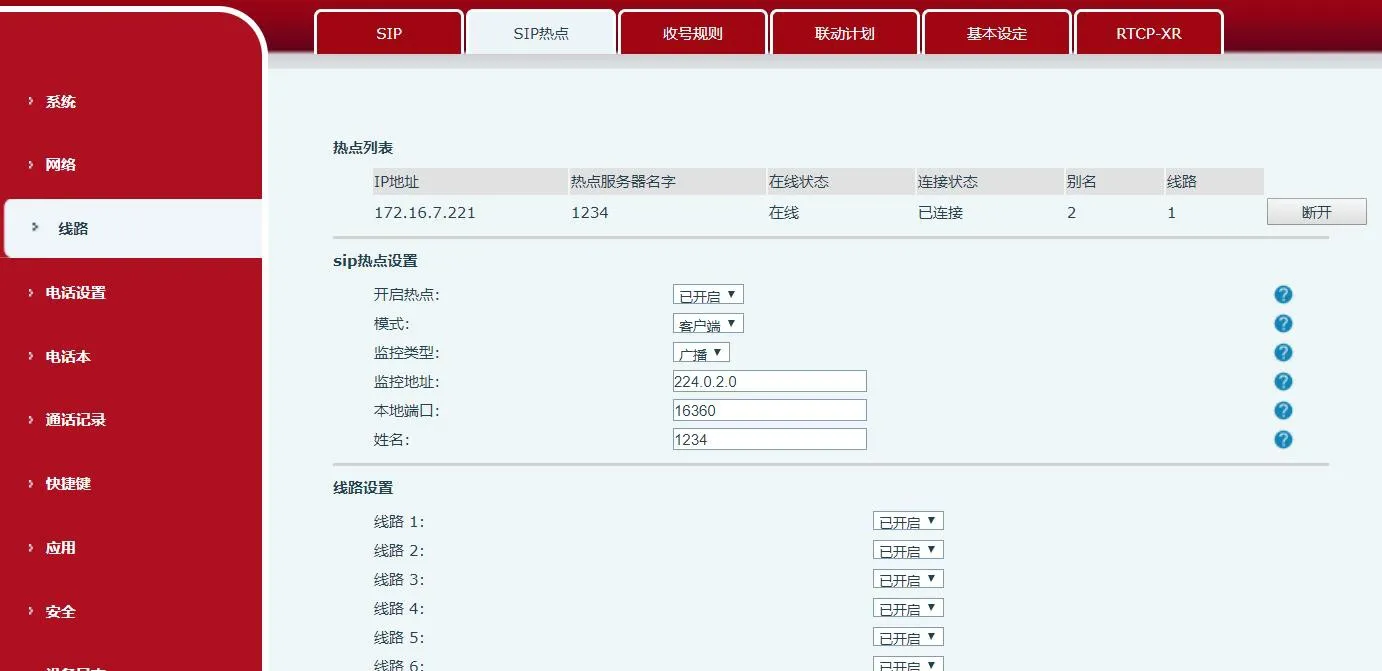
SIP Hotspot Mode Set to Client

The server IP and display names auto-populate:
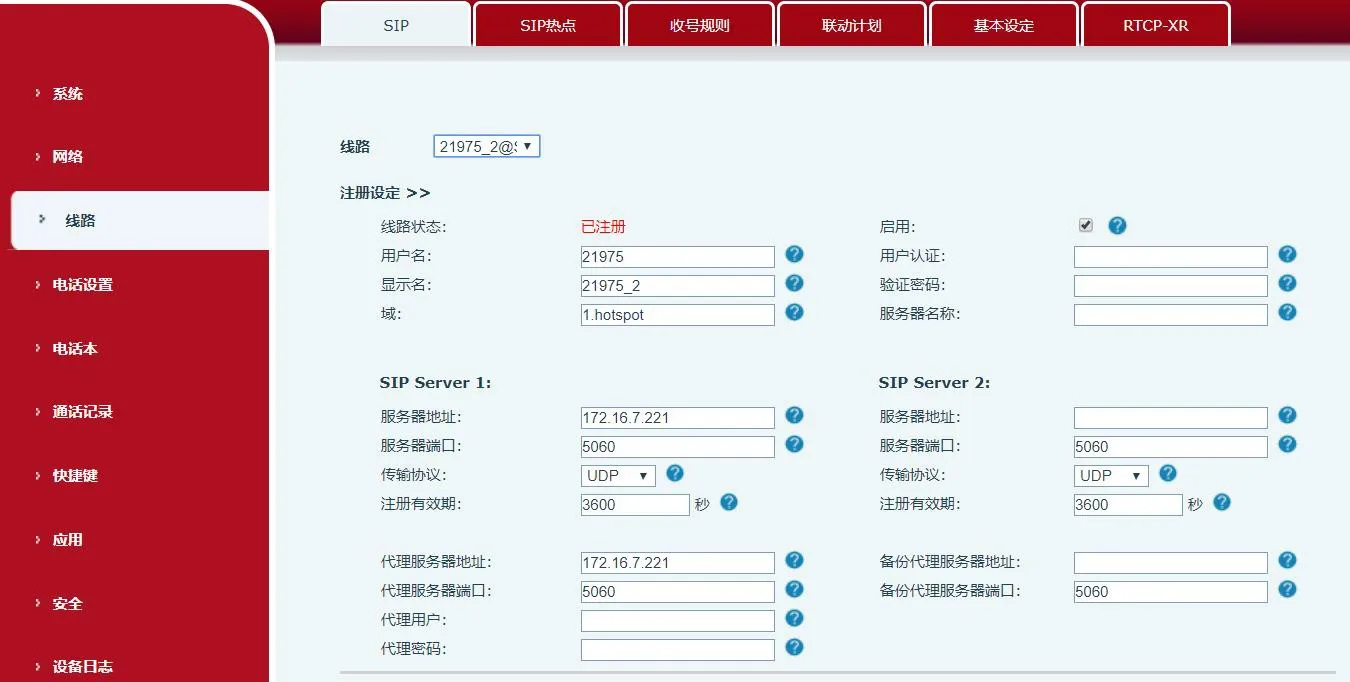
SIP Hotspot Address Auto Display

The Hotspot List shows connected hotspots (e.g., IP:172.16.7.221, Line:0). Dial 0 to call the Hotspot Master. Click Disconnect to terminate the connection.
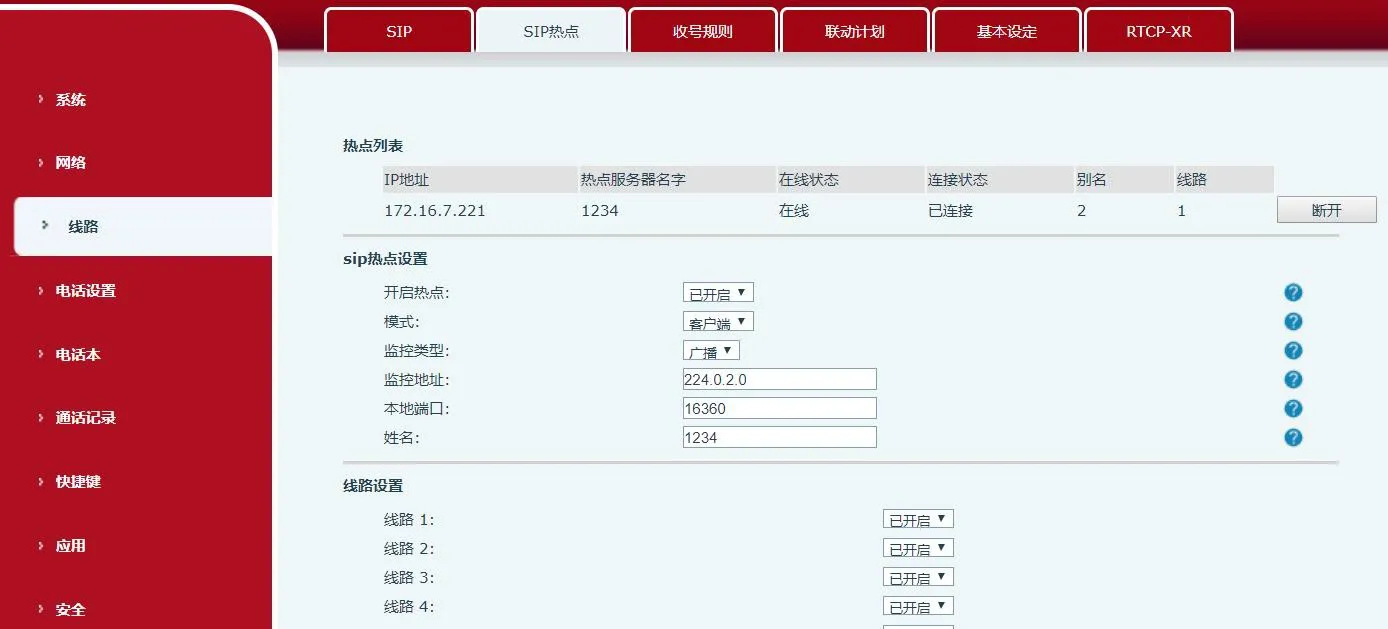
Hotspot Disconnect Interface

When disabling SIP Hotspot:
• Client: Clears registration info
• Master: Retains registration info
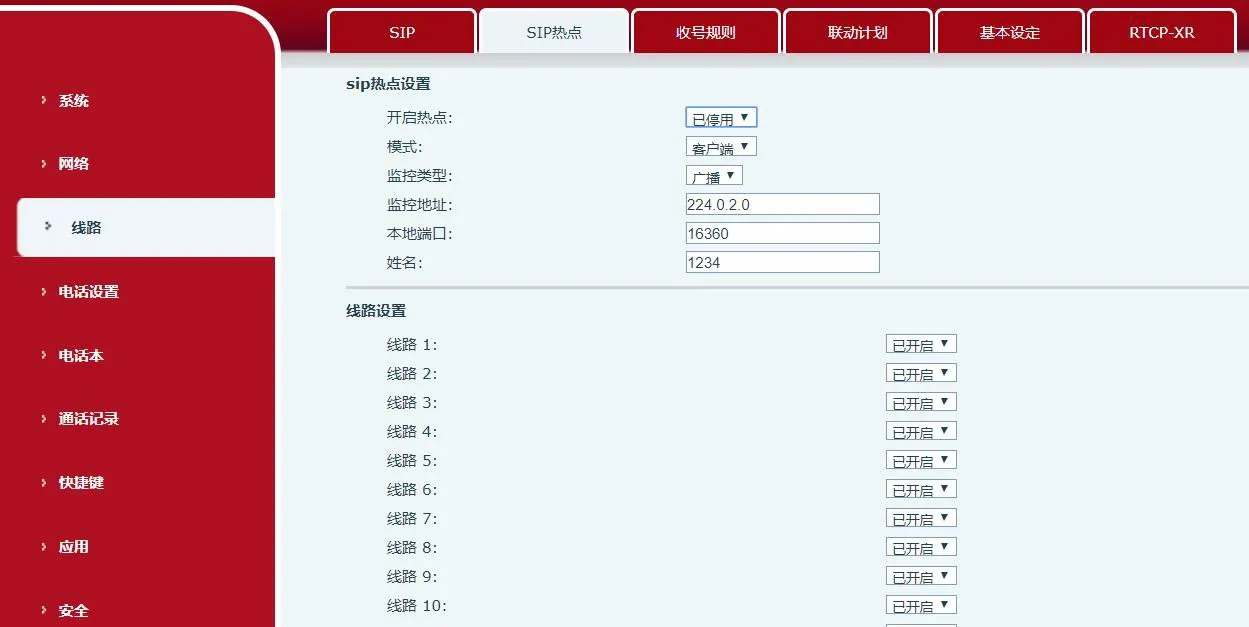
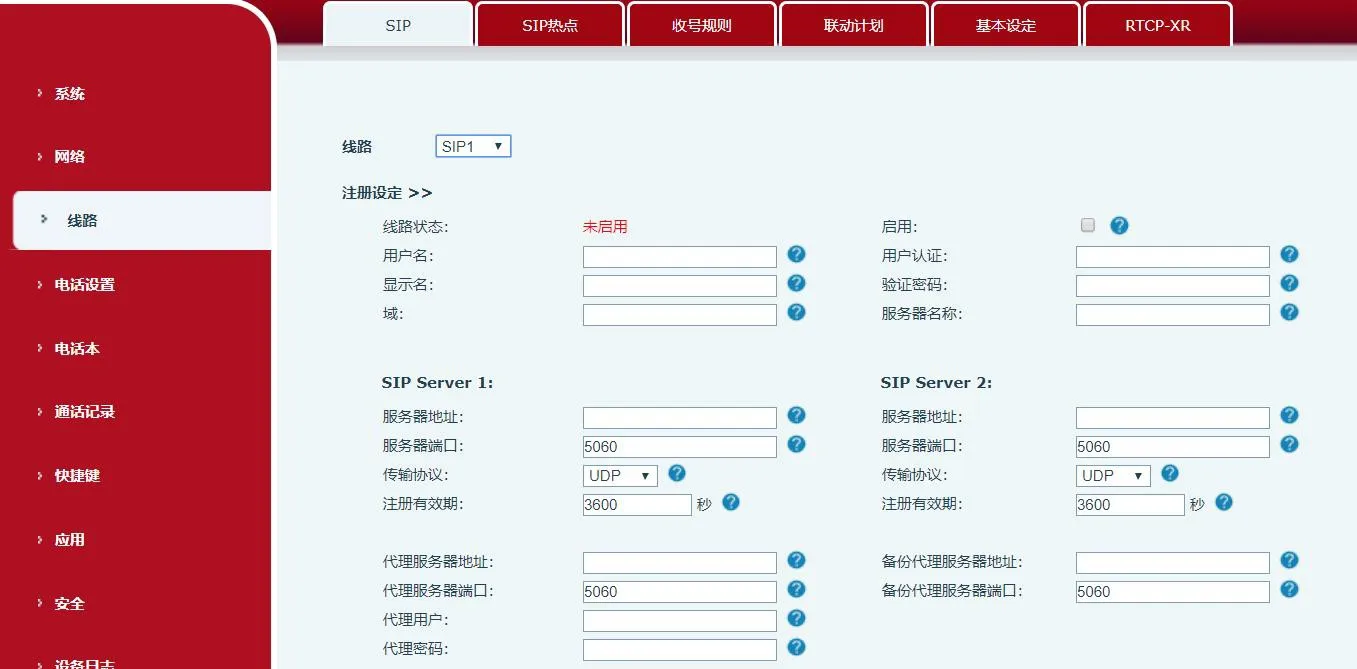
Hotspot Disabled StatusClient Registration Cleared After Disable

Important Notes:

  • Multiple hotspots on the same network require unique monitor address segments
  • Both Hotspot and Clients can make external calls
  • Hotspot supports call transfer; Clients support basic calls only
  • X5S/X6: Changes take effect immediately; X3S/X4/BH: Require reboot

Call Operations

1. Extension-to-Extension Calls

  • With Extension Prefix:
    • Master → Ext: 8000 → 8001
    • Ext → Master: 8001 → 8000
    • Ext → Ext: 8001 → 8002
  • Without Prefix:
    • Master → Ext: 0 → 1
    • Ext → Master: 1 → 0

2. External Call to Master/Extensions

Dial the Master’s external number. All devices (Master + Extensions) ring simultaneously. The first to answer connects the call.

3. Master/Extension Calling External

Dial the external number directly from the Master or any Client.

catalogue
Professional industrial communication manufacturer, providing high reliability communication guarantee!
Cooperation Consultation
customer service Phone
We use cookie to improve your online experience. By continuing to browse this website, you agree to our use of cookie.

Cookies

This Cookie Policy explains how we use cookies and similar technologies when you access or use our website and related services. Please read this Policy together with our Terms and Conditions and Privacy Policy so that you understand how we collect, use, and protect information.

By continuing to access or use our Services, you acknowledge that cookies and similar technologies may be used as described in this Policy, subject to applicable law and your available choices.

Updates to This Cookie Policy

We may revise this Cookie Policy from time to time to reflect changes in legal requirements, technology, or our business practices. When we make updates, the revised version will be posted on this page and will become effective from the date of publication unless otherwise required by law.

Where required, we will provide additional notice or request your consent before applying material changes that affect your rights or choices.

What Are Cookies?

Cookies are small text files placed on your device when you visit a website or interact with certain online content. They help websites recognize your browser or device, remember your preferences, support essential functionality, and improve the overall user experience.
In this Cookie Policy, the term “cookies” also includes similar technologies such as pixels, tags, web beacons, and other tracking tools that perform comparable functions.

Why We Use Cookies

We use cookies to help our website function properly, remember user preferences, enhance website performance, understand how visitors interact with our pages, and support security, analytics, and marketing activities where permitted by law.

We use cookies to keep our website functional, secure, efficient, and more relevant to your browsing experience.

Categories of Cookies We Use

Strictly Necessary Cookies

These cookies are essential for the operation of the website and cannot be disabled in our systems where they are required to provide the service you request. They are typically set in response to actions such as setting privacy preferences, signing in, or submitting forms.

Without these cookies, certain parts of the website may not function correctly.

Functional Cookies

Functional cookies enable enhanced features and personalization, such as remembering your preferences, language settings, or previously selected options. These cookies may be set by us or by third-party providers whose services are integrated into our website.

If you disable these cookies, some services or features may not work as intended.

Performance and Analytics Cookies

These cookies help us understand how visitors use our website by collecting information such as traffic sources, page visits, navigation behavior, and general interaction patterns. In many cases, this information is aggregated and does not directly identify individual users.

We use this information to improve website performance, usability, and content relevance.

Targeting and Advertising Cookies

These cookies may be placed by our advertising or marketing partners to help deliver more relevant ads and measure the effectiveness of campaigns. They may use information about your browsing activity across different websites and services to build a profile of your interests.

These cookies generally do not store directly identifying personal information, but they may identify your browser or device.

First-Party and Third-Party Cookies

Some cookies are set directly by our website and are referred to as first-party cookies. Other cookies are set by third-party services, such as analytics providers, embedded content providers, or advertising partners, and are referred to as third-party cookies.

Third-party providers may use their own cookies in accordance with their own privacy and cookie policies.

Information Collected Through Cookies

Depending on the type of cookie used, the information collected may include browser type, device type, IP address, referring website, pages viewed, time spent on pages, clickstream behavior, and general usage patterns.

This information helps us maintain the website, improve performance, enhance security, and provide a better user experience.

Your Cookie Choices

You can control or disable cookies through your browser settings and, where available, through our cookie consent or preference management tools. Depending on your location, you may also have the right to accept or reject certain categories of cookies, especially those used for analytics, personalization, or advertising purposes.

Please note that blocking or deleting certain cookies may affect the availability, functionality, or performance of some parts of the website.

Restricting cookies may limit certain features and reduce the quality of your experience on the website.

Cookies in Mobile Applications

Where our mobile applications use cookie-like technologies, they are generally limited to those required for core functionality, security, and service delivery. Disabling these essential technologies may affect the normal operation of the application.

We do not use essential mobile application cookies to store unnecessary personal information.

How to Manage Cookies

Most web browsers allow you to manage cookies through browser settings. You can usually choose to block, delete, or receive alerts before cookies are stored. Because browser controls vary, please refer to your browser provider’s support documentation for details on how to manage cookie settings.

Contact Us

If you have any questions about this Cookie Policy or our use of cookies and similar technologies, please contact us at support@becke.cc .