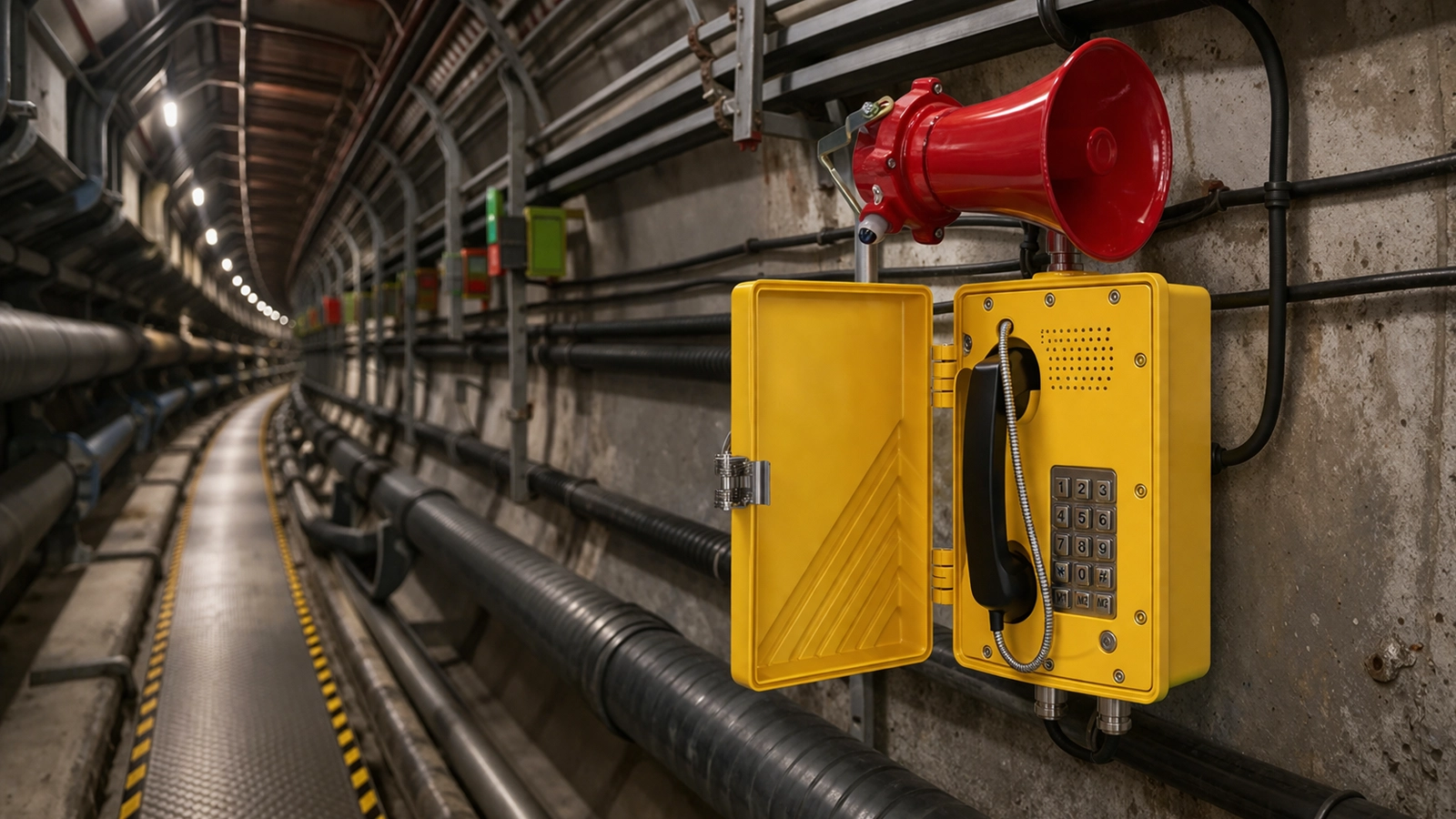
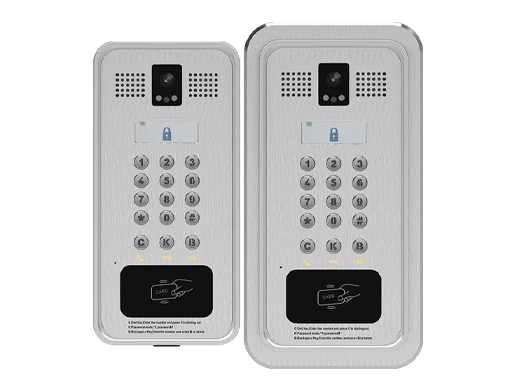
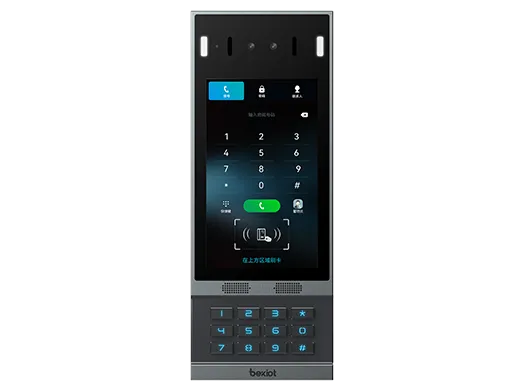
Feature Introduction
Overview
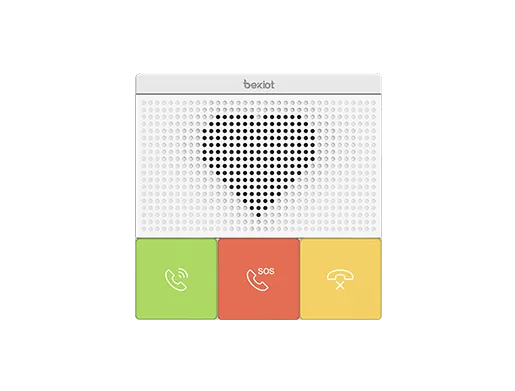
The BX7A Bluetooth Mobile Line connects to mobile phones (supports both Android and iOS) and controls mobile calls. Main features include:
- Contact synchronization
- DSS key configuration
- Make & answer calls
- Call Hold / Resume
- Mute / unmute
- Volume adjustment
- DTMF input during calls
Bluetooth Mobile Line Detailed Functions
Contact Sync
- Enable Bluetooth on the phone: Go to Phone Settings → Connected Devices → Enable Bluetooth. Pair and connect your phone. A prompt will appear: "Sync Contacts?"
- Tap "Yes" to sync contacts to the phone (No = no real-time sync). Check contacts in the Mobile Contacts directory.
• Add/delete mobile contacts → Click update on the phone to sync.
• Without clicking update, contacts will NOT auto-refresh.
DSS Key Configuration
Set the DSS Key Type to Mobile.
• Green icon = Bluetooth connected
• Gray icon = Disconnected/out of range
• Back in range: green icon flashes → reconnects → solid green
Make & Answer Calls (Bluetooth Line)
- Outgoing calls: Configure a DSS key as Line → Mobile (web UI or LCD). Press the Mobile line key, dial a number, and call.
- Incoming calls: Call the paired mobile phone number. Answer on the BX7A (hands-free, handset, or headset).
Hold / Resume
Hold and unhold work normally during Bluetooth calls. Audio is clear. Status syncs between the phone and mobile.
Mute / Unmute
Mute and unmute functions work properly during calls.
Volume Adjustment
Call volume can be adjusted normally on the phone during calls.
DTMF Input During Calls
DTMF codes can be entered normally during calls.
Contact Synchronization Feature
Function Description
BX7A can sync the native contacts from paired mobile phones (Android & iOS).
Note: Call history sync is NOT supported yet.
Operation Steps
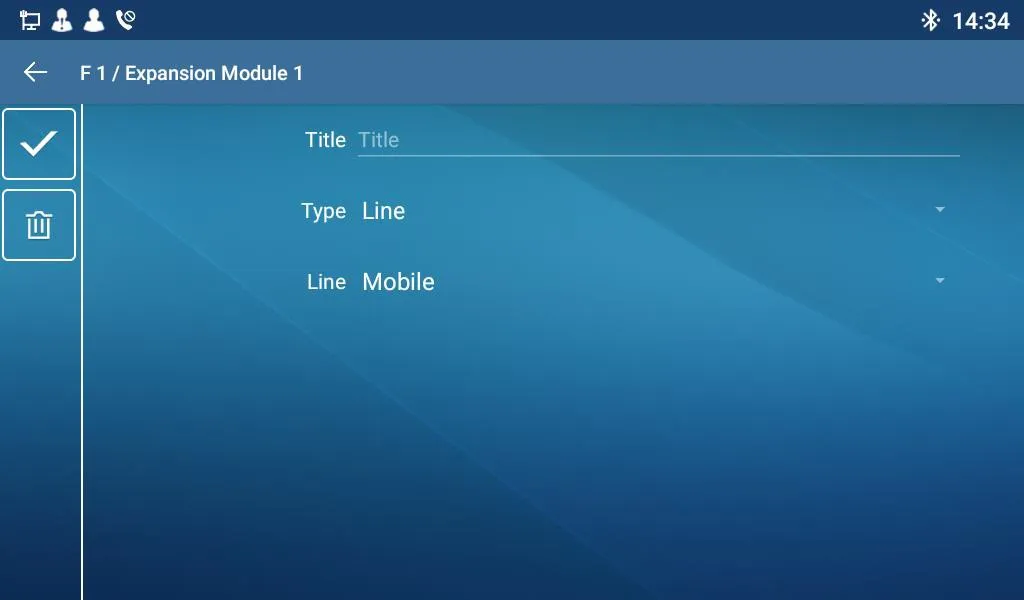
Press the "Unfold" button on the right side of BX7A. Long-press the SIP key to configure:
• Title: Custom name
• Type: "Line"
• Line: "Mobile"
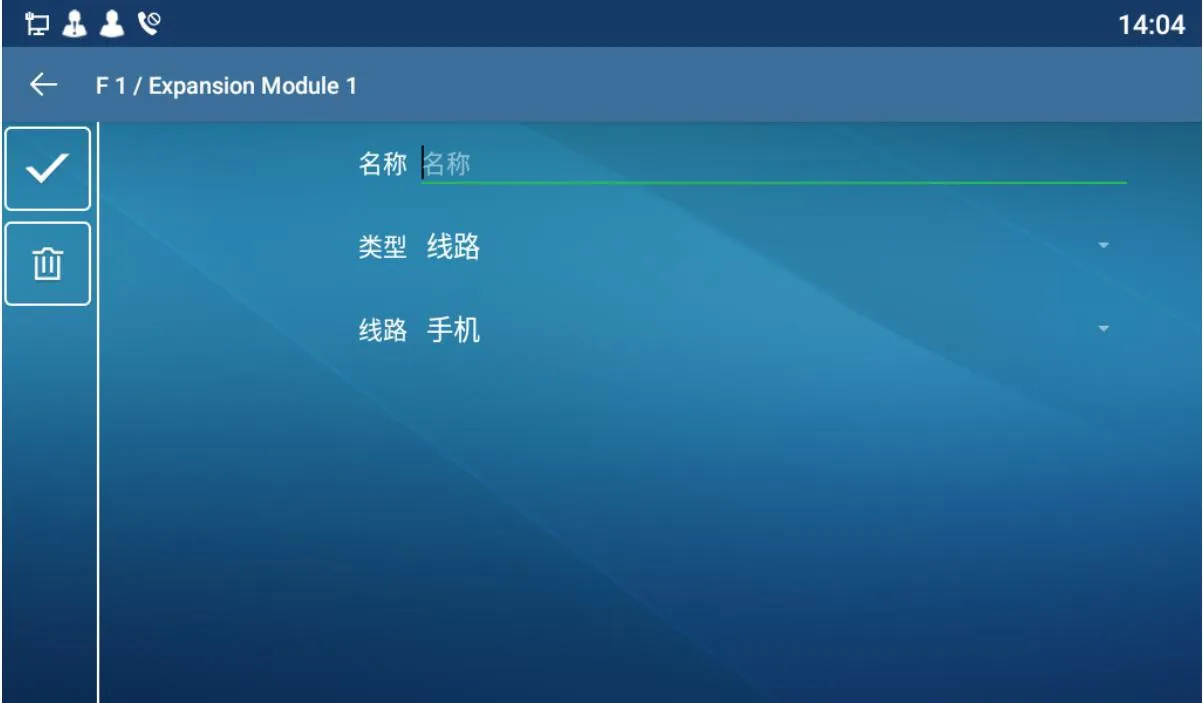
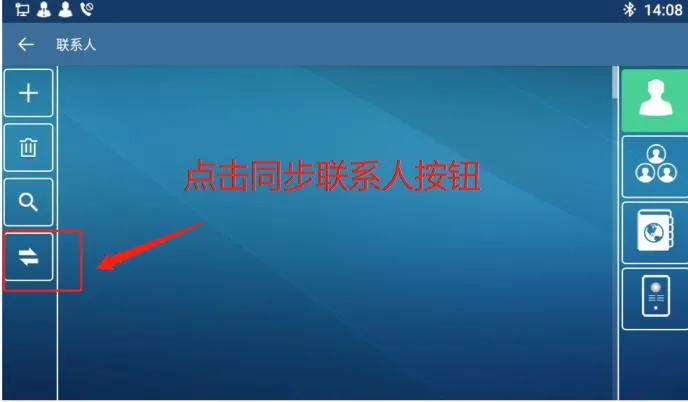
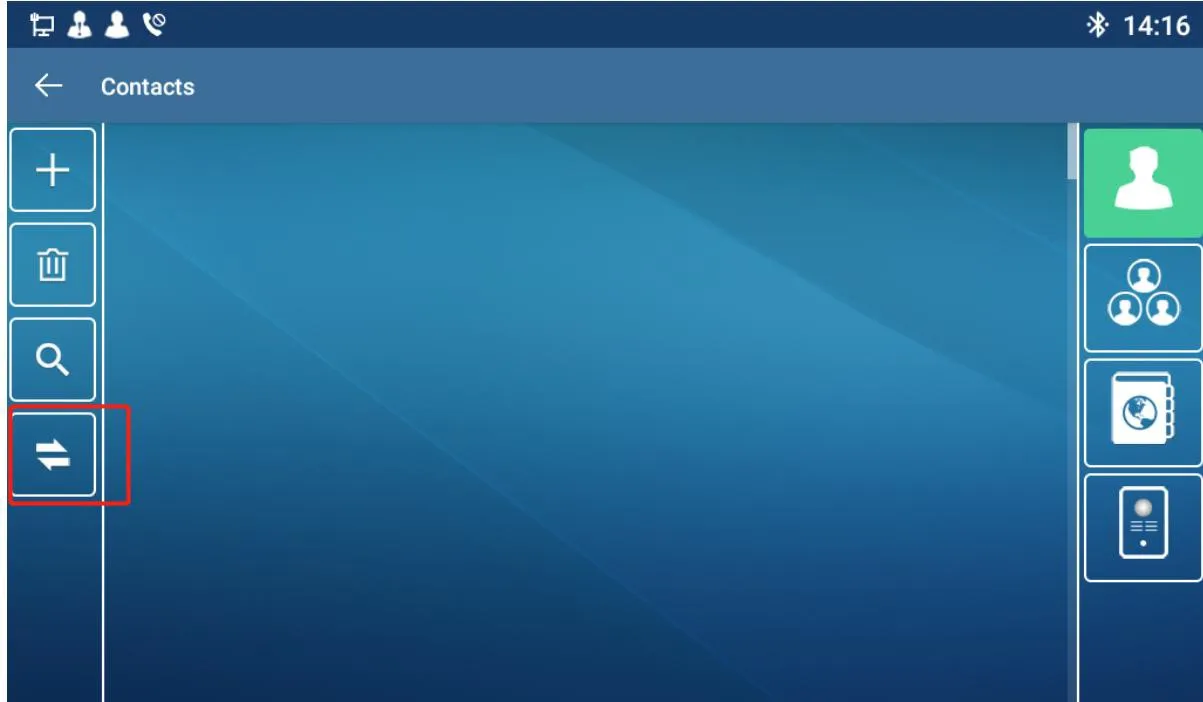
- Open the BX7A Contacts interface → tap the Sync button on the left.
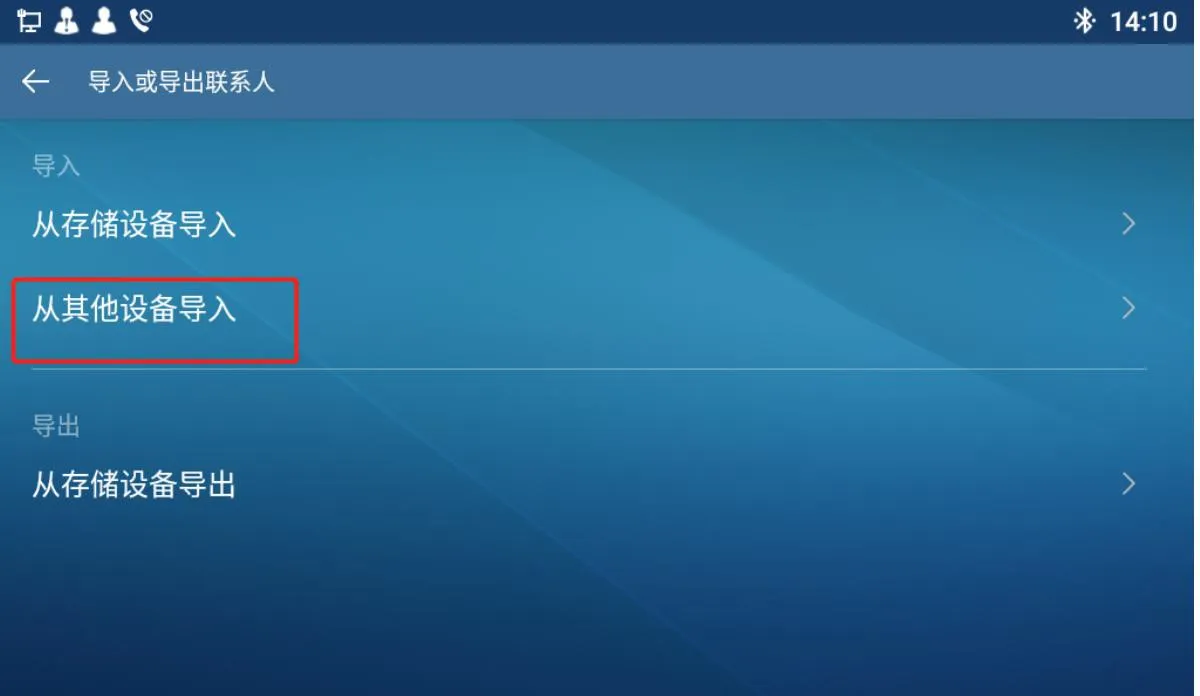
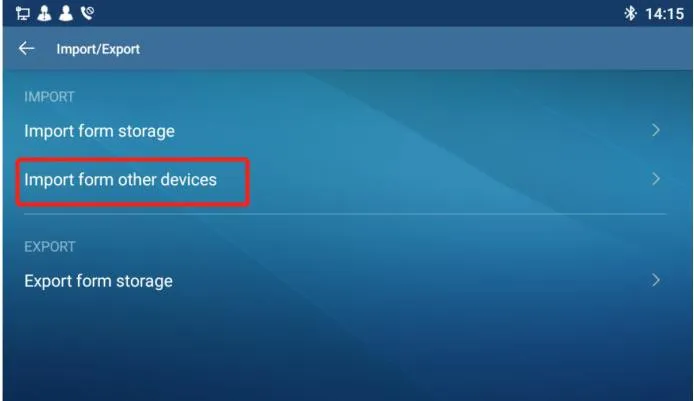
- Select the second option under Import: Import from other device.
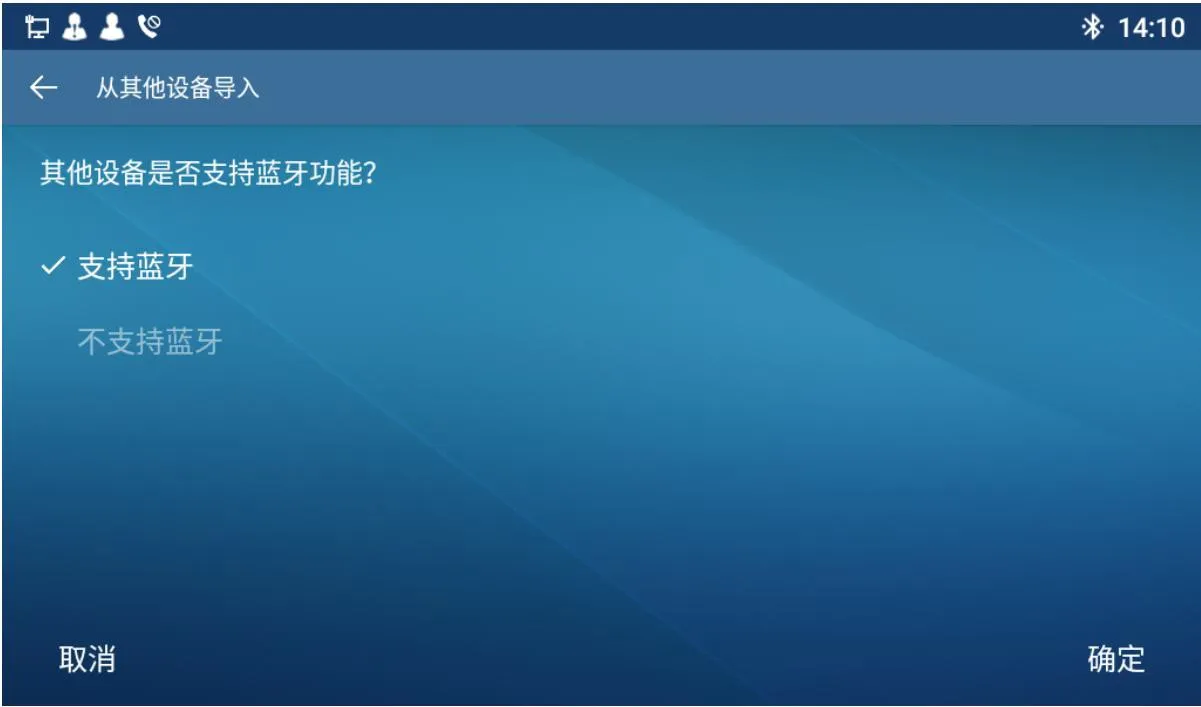
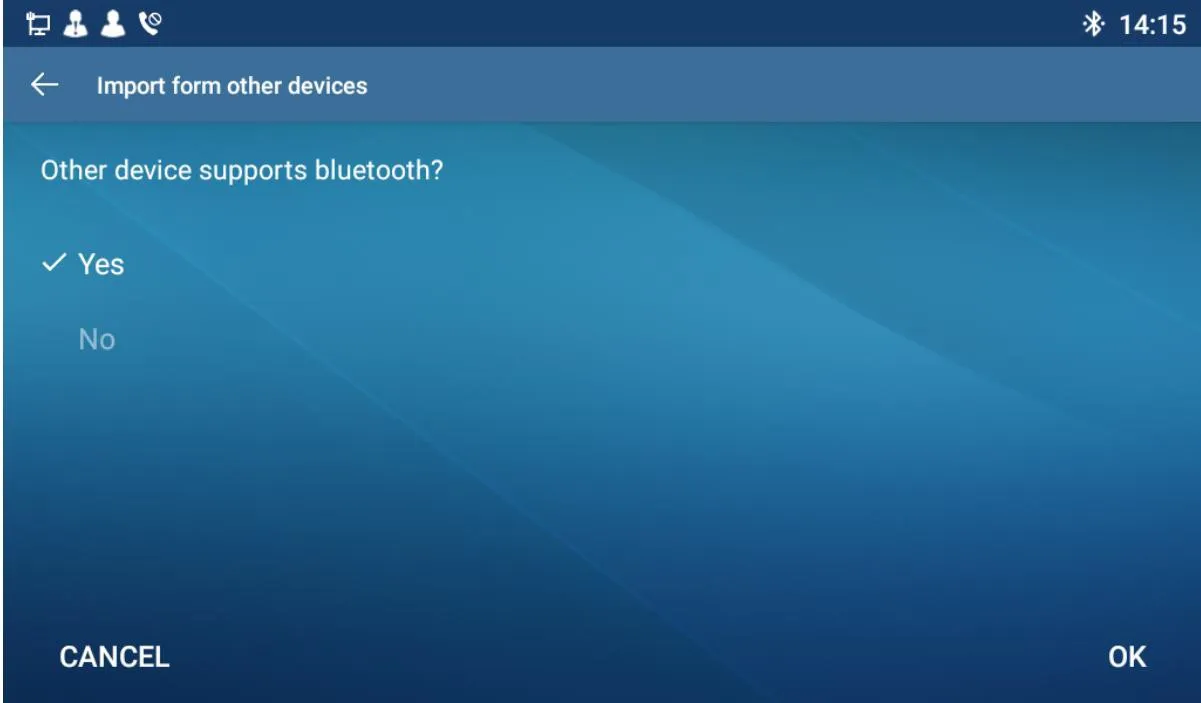
- If your phone supports Bluetooth, select "Yes" → OK.
Select "No" to use the default: Import from phone storage.
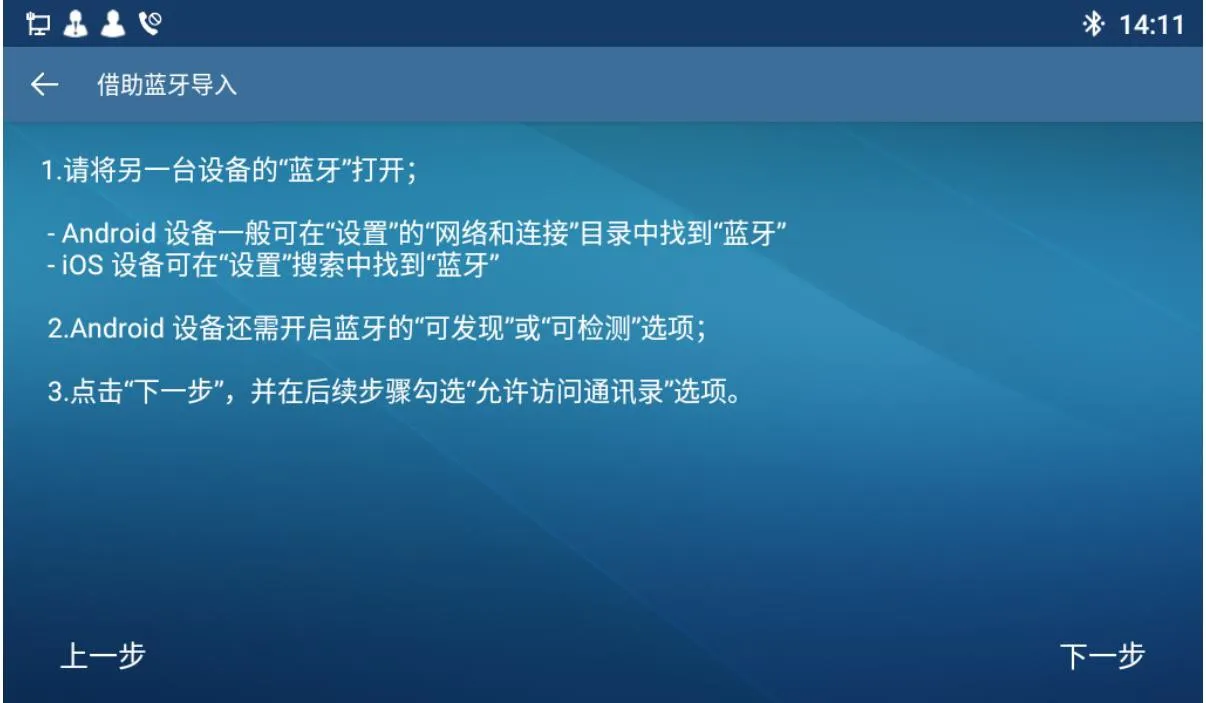
- This page shows sync instructions. Tap Next to continue.
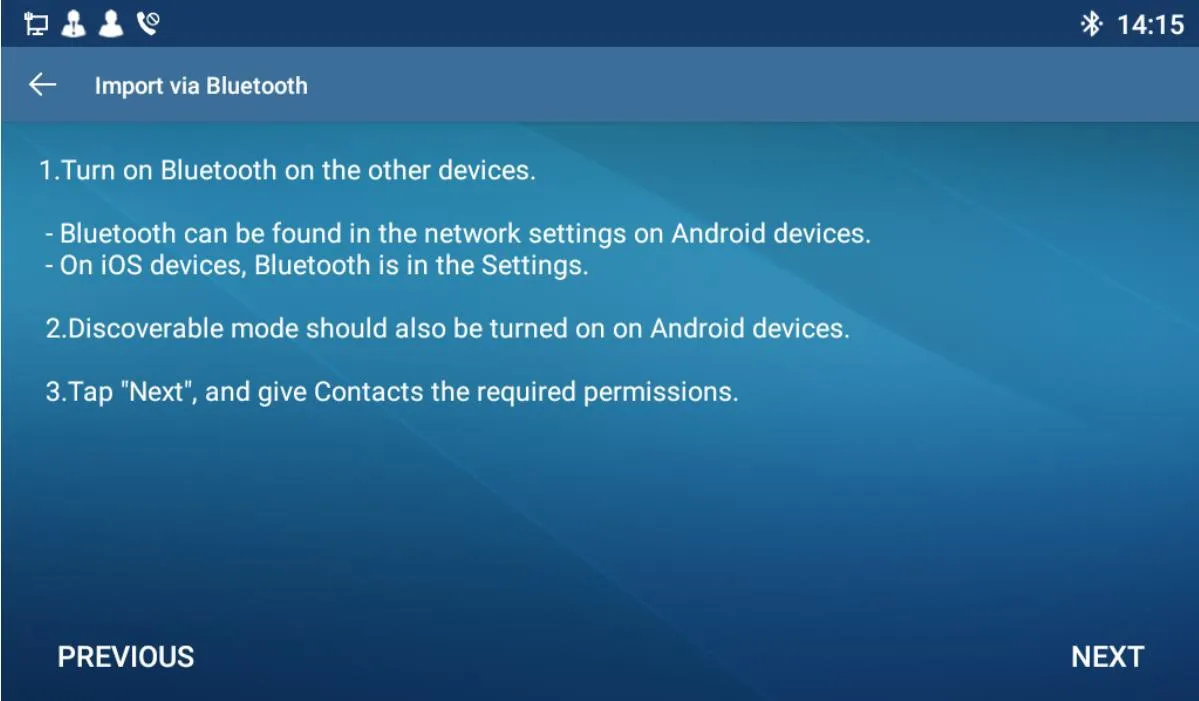
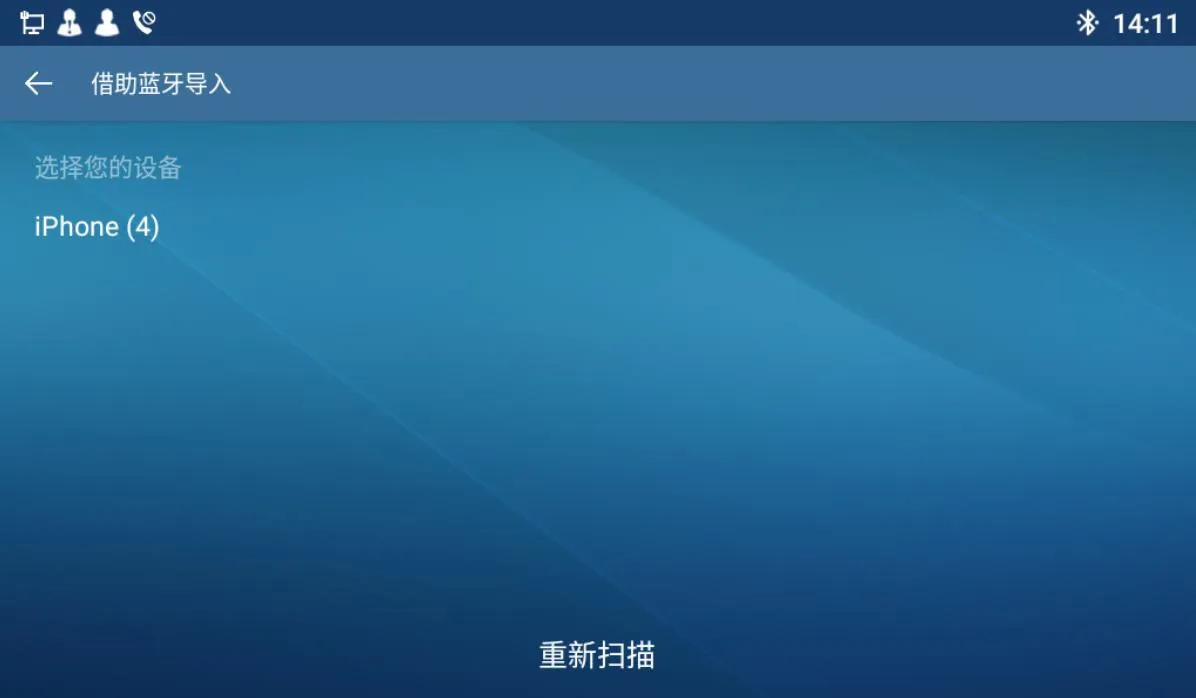
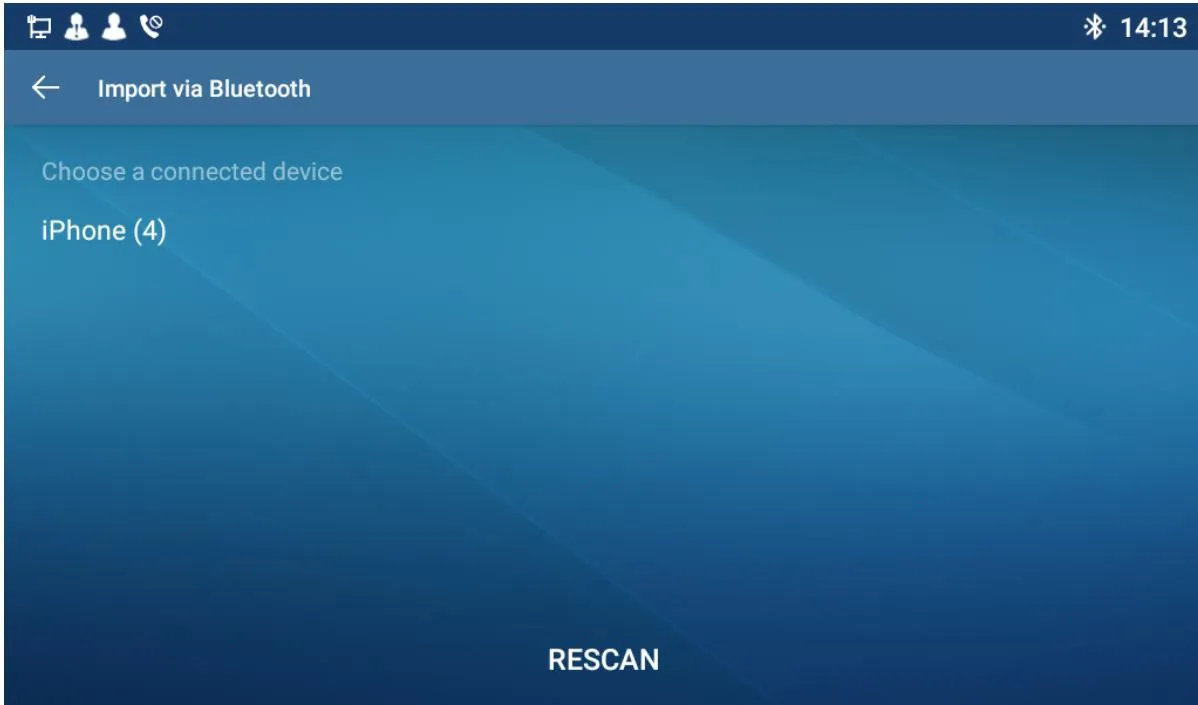
- Select your paired Bluetooth device (only connected devices appear).
If no devices found: you will be directed to Bluetooth settings to pair first. Then return and tap RESCAN.
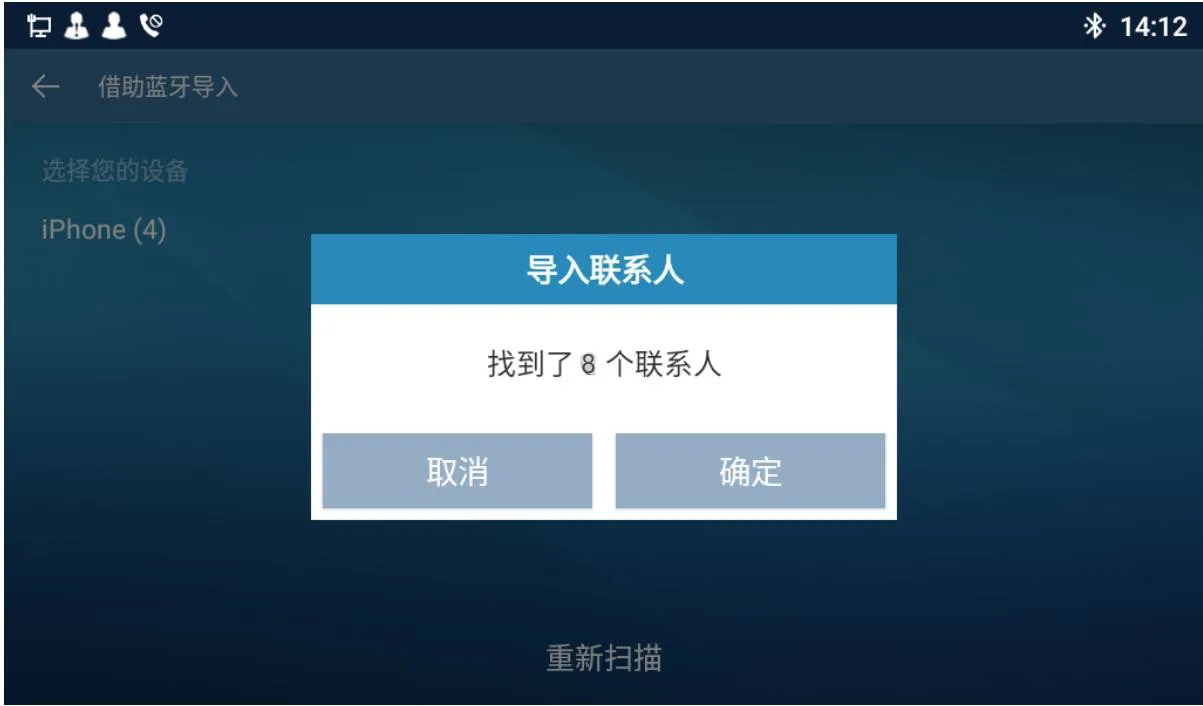
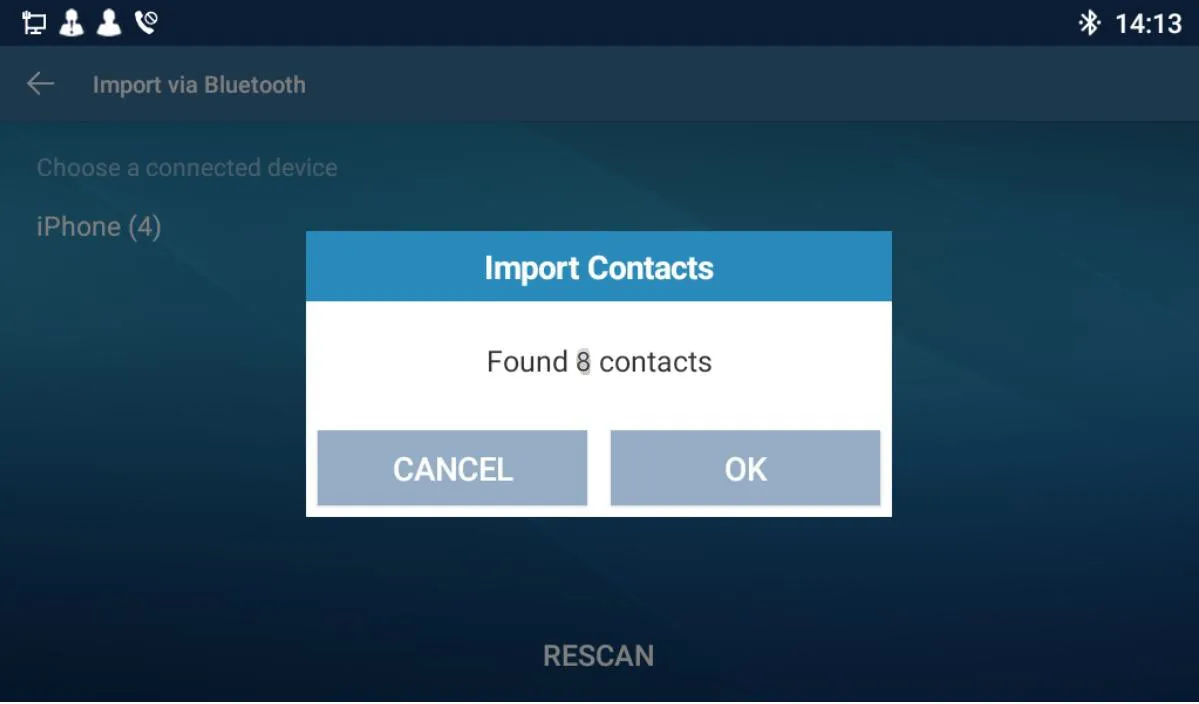
- After mobile sync succeeds: a popup shows total contacts.
Tap OK to save to BX7A.
Tap Cancel to discard.
- After successful save, the phone returns to the main Contacts screen. Sync complete.
Note: UI supports English, Simplified Chinese, and Traditional Chinese.