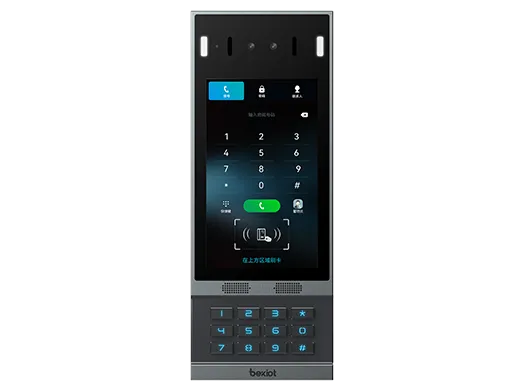
Introduction
Overview
This document mainly introduces the voice self-test function of the product.
Voice self-test refers to testing the speaker and microphone of the device, that is, an echo self-test. Its principle is that the device plays sound through the speaker and captures the sound through the microphone, so as to determine whether the speaker and microphone are working properly. It is commonly used for remote inspection of whether the speaker and microphone of a device are functioning normally. The following sections provide a detailed introduction to how to perform voice self-test on industrial devices.
Applicable Models
i12, i11, i16V, i18S, i20S, i30, i32V, i33V, i16SV, i10SV, PA3, and PA2S.
How Voice Self-Test Works
The device plays audio through the speaker, for example by playing a short audio clip, while the microphone captures the sound and checks what percentage of the audio has been received. If the result exceeds a certain threshold, the test is judged as successful. If it is below a certain threshold, the test is judged as failed. The principle is shown in Figure 1 below:
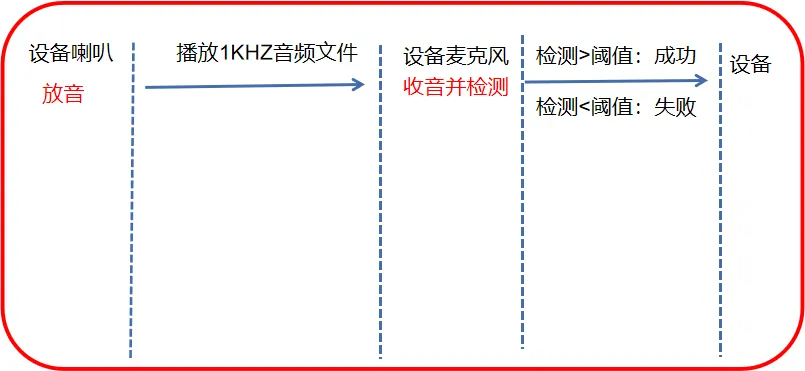
Figure 1 Voice Self-Test Principle Diagram
Voice Self-Test Application Scenarios
Voice self-test is commonly used for remote device inspection. To save time and improve inspection efficiency, when there is no broadcast audio or the broadcast sound suddenly stops, users can perform a remote self-test on the device from the control room.
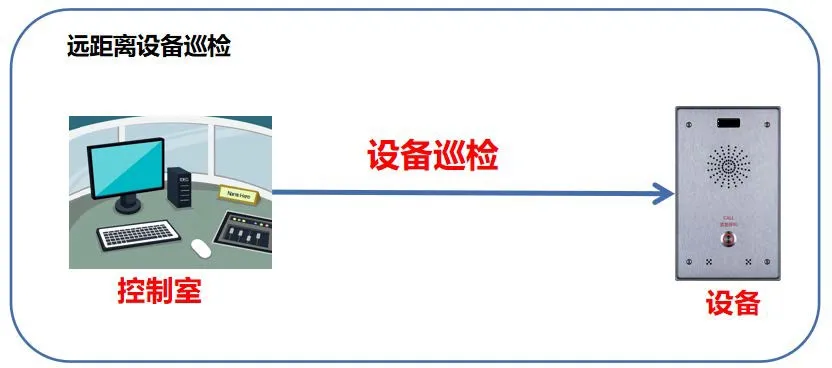
Figure 2 Voice Self-Test Application Scenario
Required Devices and Tools
① One intercom series product (the i12 is used as an example here), one PoE switch (or DC power supply), and one Yunyi server. Connect the device to the switch.
② One configuration PC and one server. Connect the PC to the switch and make sure the network between the PC and the device is reachable.
Connection Diagram of Device and PC
① Connect the i12 to the switch, connect the server to the switch, and connect the PC to the same switch as the device, ensuring that the network between the PC and the device is reachable. The connection diagram is shown in Figure 3 below.
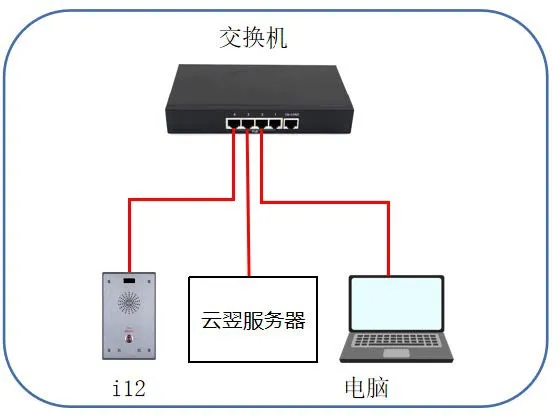
Figure 3 Device and PC Connection Diagram
Operation Guide
There are different ways to implement echo self-test. Each method is described in detail below.
Active URI Method
Active URI means that a remote console initiates an HTTP GET request, and the built-in HTTP server of the device parses the command and responds to the request, thereby achieving the goal of remote control of the device.
(1) Self-test format: http://device_ip/cgi-bin/ConfigManApp.com?key=ECHO_TEST;
① device_ip: the IP address of the device to be tested, using 172.18.8.15 as an example here;
② Return result: when the device speaker and microphone are properly connected, the result is success; if the speaker or microphone is not connected or is damaged, the result is Failure;
(2) Example: enter http://172.18.8.15/cgi-bin/ConfigManApp.com?key=ECHO_TEST in the browser. When the device speaker and microphone are properly connected, the result will be success, as shown in Figure 4 below.
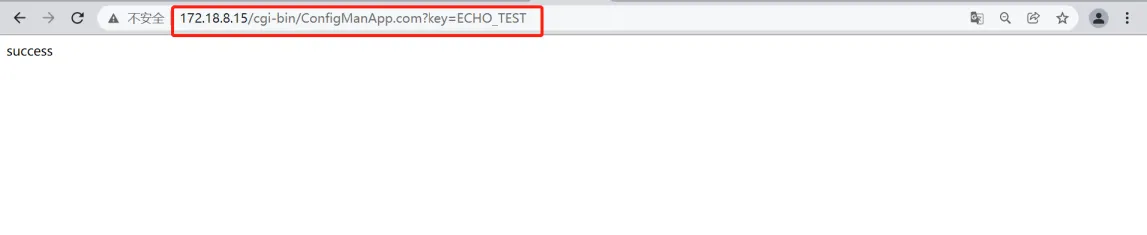
Figure 4 Active URI Voice Self-Test Diagram
HTTP API Method
HTTP API is an application programming interface used to integrate with third-party applications or management systems. The device acts as an HTTP server and provides HTTP API services at the URL http://ip/xmlservice. The third-party application acts as an HTTP client and sends HTTP POST requests to the URL, with the content encapsulated in XML format.
HTTP API request format:
(1) Client -> Server request:
(?xml version="1.0" encoding="UTF-8" ?)
(FanvilPhoneExecute beep=”yes” )
(ExecuteItem>URI="cmd:echo_test"(/FanvilPhoneExecute)
cmd:audio_play: indicates that the requested command is echo self-test;
(2) Server -> Client response:
(?xml version="1.0" encoding="UTF-8"?)
(FanvilPhoneExecute)
(ExecuteItem>URI="cmd:echo_test")
(RetCode>0)
(info)
(![CDATA[success]])
(/info)
(/FanvilPhoneExecute)
(3) Return result: when the device speaker and microphone are properly connected, the result is success; if the speaker or microphone is not connected or is damaged, the result is Failure;
(4) Example: you can use Postman or ApiPost for testing. Use a POST request with the path http://device_ip/xmlservice. After correctly entering the request content sent from the client to the server, click “Send” to send the request successfully and return the test result, as shown in Figure 5 below.
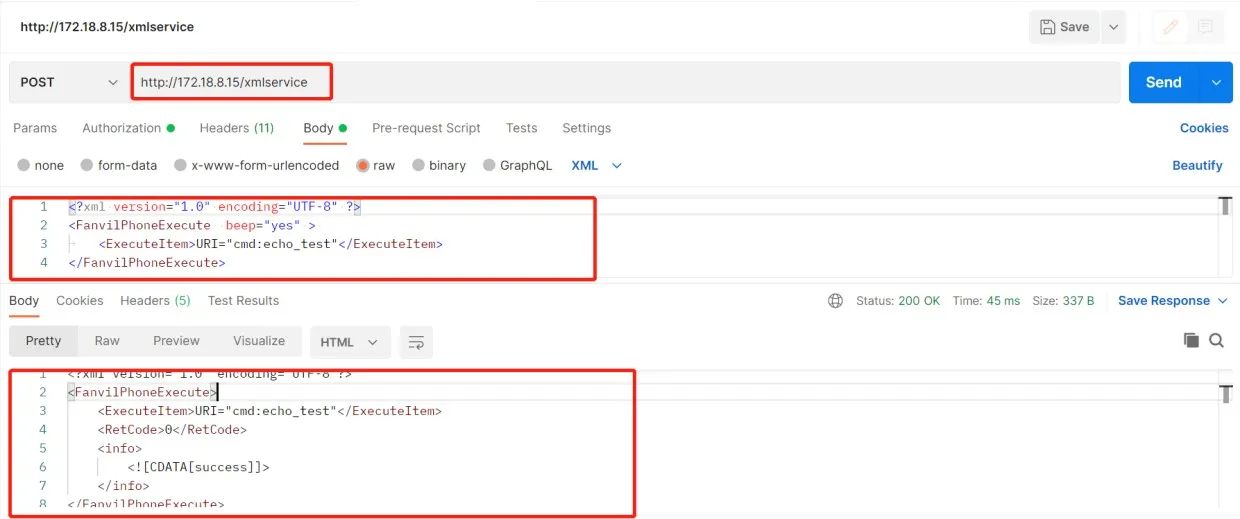
Figure 5 HTTP API Voice Self-Test Diagram
Time Plan Method
A voice self-test item can be added in the Time Plan settings. During the configured time period or at the configured time point, the device will perform the self-test and report the result through the Action URL.
(1) Log in to the device web interface, then go to “Intercom Settings” --- “Time Plan” --- “Time Plan Rules” to add a time plan, as shown in Figure 6 below:
① Execution Type: select “Voice Self-Test”;
② Execution Time: select the corresponding time period, during which the device will perform the self-test.
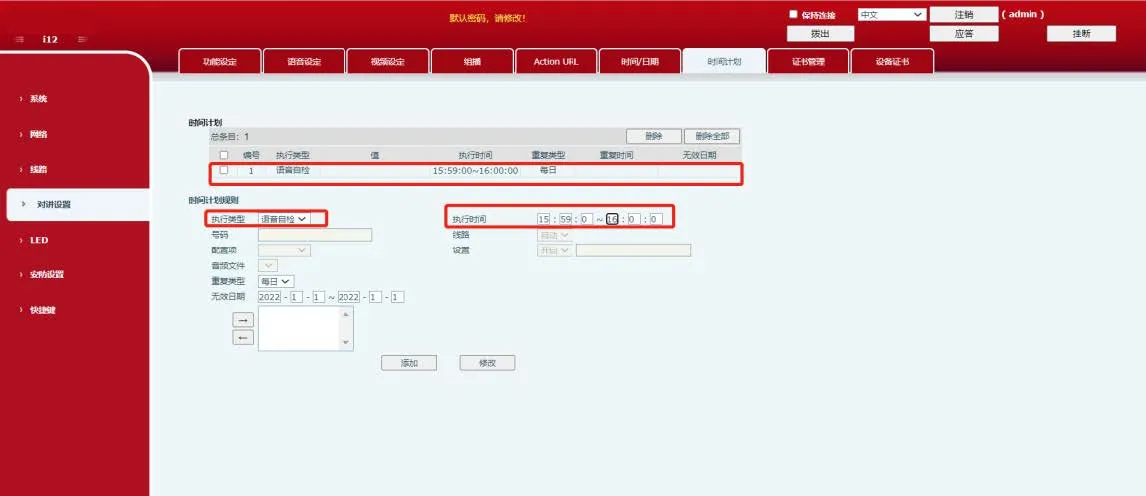
Figure 6 Time Plan Voice Self-Test Diagram
(2) After the plan is added successfully, a new time plan entry will appear under “Time Plan”. When the scheduled time is reached, the device will perform the self-test automatically.
SIP Message Method
The SIP Message method is used in public network environments. The server sends a Message Active URI command, and the device replies with 200 OK to the MESSAGE request. The device then sends a Message Response to report the result to the platform, and the platform replies with 200 OK to the Message Response request.
(1) Register the device account on the server.
(2) Create a self-test task on the server. Using the Yunyi server as an example, log in to the Yunyi server web interface, select “Self-Test Task” --- “Add”, and add a self-test task.
(3) After the task is added, select the task and click Execute. If the device speaker and microphone are connected properly, the task will be executed successfully. If the speaker or microphone is not connected or is damaged, the task will fail and the server interface will display an abnormal status. You can also click “Self-Test Result” in the server web interface to view the result of the device self-test.
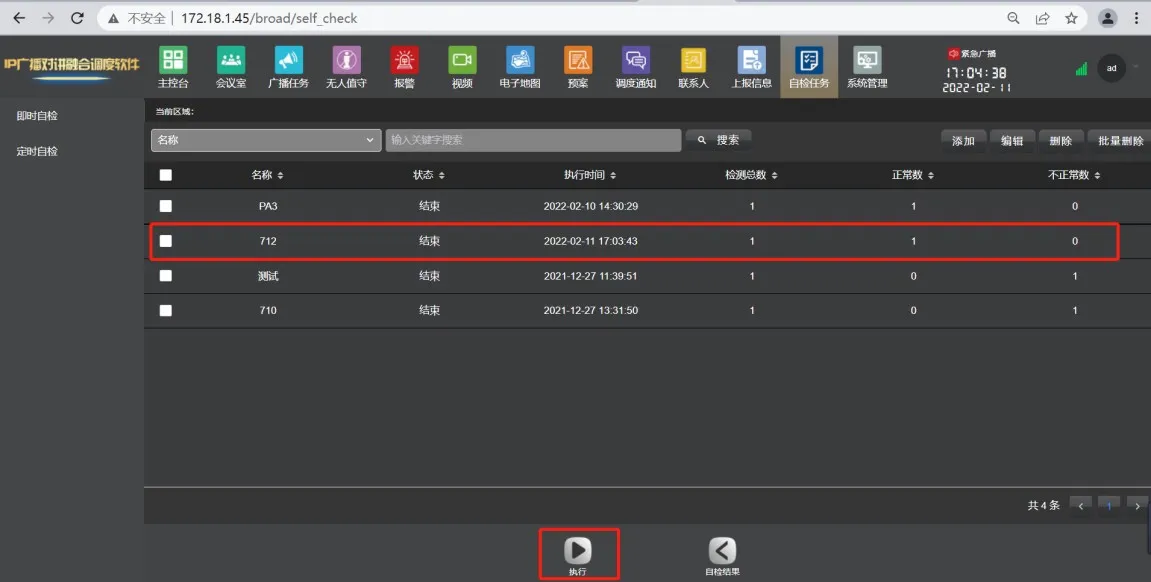
Figure 7 SIP Message Voice Self-Test Diagram
(4) You can also verify whether the self-test succeeds or fails by capturing packets on the device. Before starting the self-test, go to the device web interface and click “System” --- “Assistant Tools” --- “Network Packet Capture”, then click “Start”.
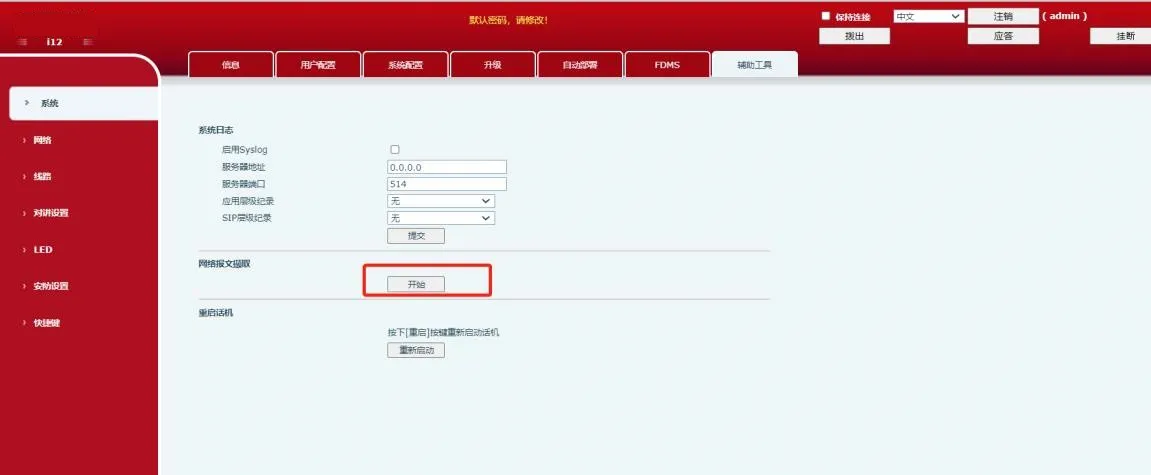
Figure 8 Device Packet Capture Diagram
After the self-test is completed, click “Stop” in the device web interface. Open the packet file in Wireshark and filter by the “sip” field. In the MESSAGE message, if the “Success” field appears, the self-test succeeded. If “Fail” or “Failure” is displayed, the self-test failed.
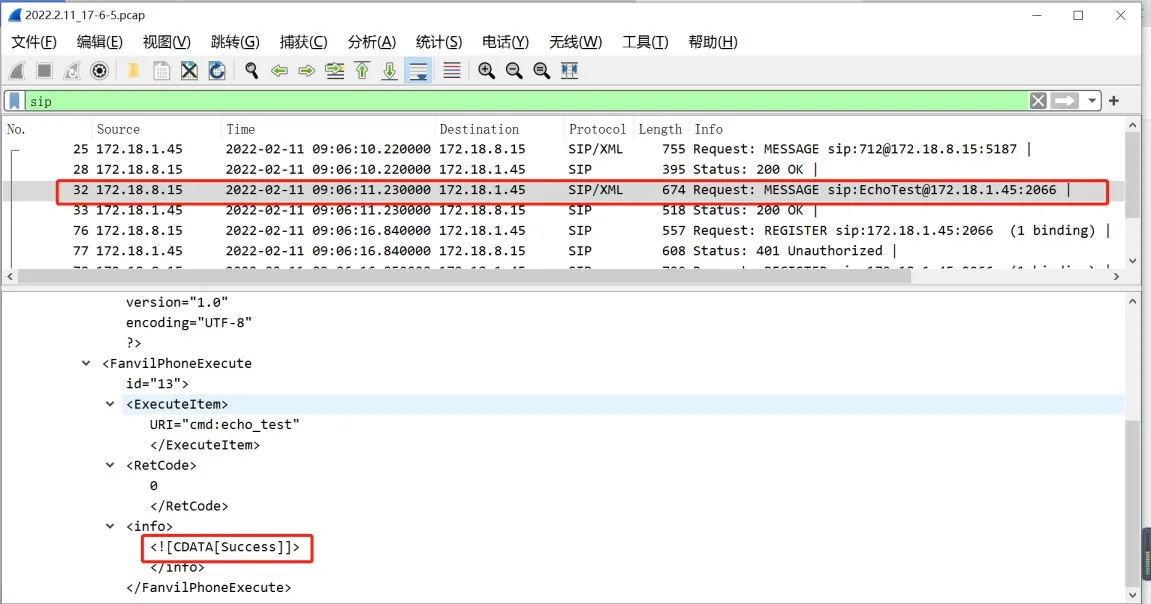
Figure 9 Packet Capture Result Diagram
How to Handle Voice Self-Test Failure
In actual use, users may encounter voice self-test failures. This can be caused by different reasons, and the following checks can be carried out:
(1) Check the connections
When the voice self-test shows failure, check whether the speaker and microphone are connected properly. If the speaker is not connected, the result should show failure. However, if the environment is noisy, it may be misjudged as success. If the microphone is not connected, the result will definitely show failure.
(2) Check the accessories
If the speaker and microphone are connected properly but the result still shows failure, check whether the speaker and microphone accessories are damaged. If the accessories are also normal, contact technical support.
(3) Confirm whether the environment is quiet
The principle of the self-test is that the device speaker plays a 1 kHz audio signal, and the microphone receives that same 1 kHz signal. If there is a 1 kHz audio signal in the surrounding environment, the detection may become inaccurate. For example, even if the speaker is faulty, the device may still detect a 1 kHz signal from the environment and incorrectly judge the test as successful.