How to Create, Edit, Import Custom Ringtones and Configuration Instructions
Supported Devices
The following models support custom ringtone upgrade: BX5S/BX6/BX7/BX7C/GP210/GP210i/BX4U/BX5U/BX6U and C600.
- C600 (Android): Supports any MP3 file as custom ringtone.
- Other models: Support importing ONE custom ringtone file only.
Ringtone File Format Requirements
BX3S/BX4 Supported Format: 8K/16K 16-bit linear samples; 8K/16K 8-bit u/A-law samples
- Sample rate: 8K/16K
- Resolution: 16-bit/8-bit
- Format: Linear/u/a-law (*.wav)
- Max file size: 500KB (phone will auto-truncate if oversized)
BX5S/BX6/GP210/BX7 Supported Format: 8000/16000Hz, 16-bit
- Sample rate: 8K/16K
- Resolution: 16-bit
- Format: *.wav
- Duration: ~30s, file size < 256KB
Ringtone Creation
Install Audio Editor (CoolEdit2.1)
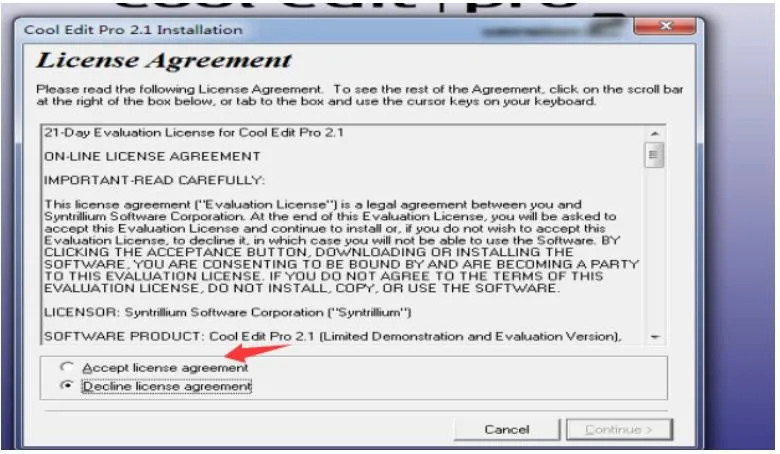
Run the installer, click accept, then click continue.
Click Next, you can use the default installation path.
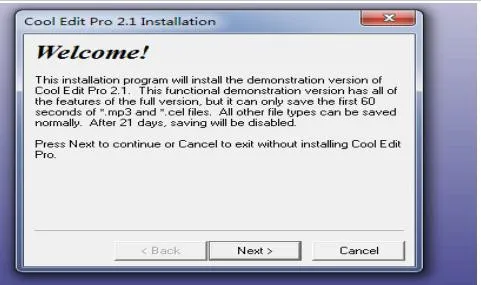
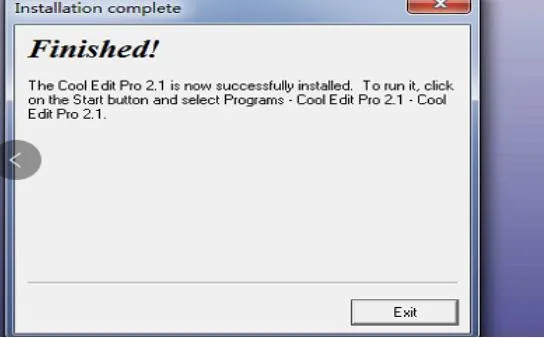
After selecting the path, click Next, then click exit when installation completes.
Launch the software, open your audio file via File → Open.
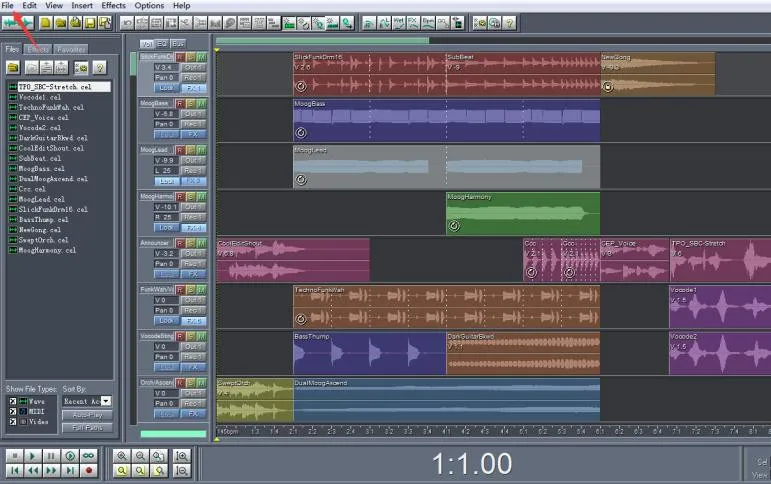
Click the Play button to preview the audio file.
Select and Copy the Desired Audio Clip (Ctrl+C)
Click the start point with the left mouse button, drag to the end point, then release. The selected segment will be highlighted.
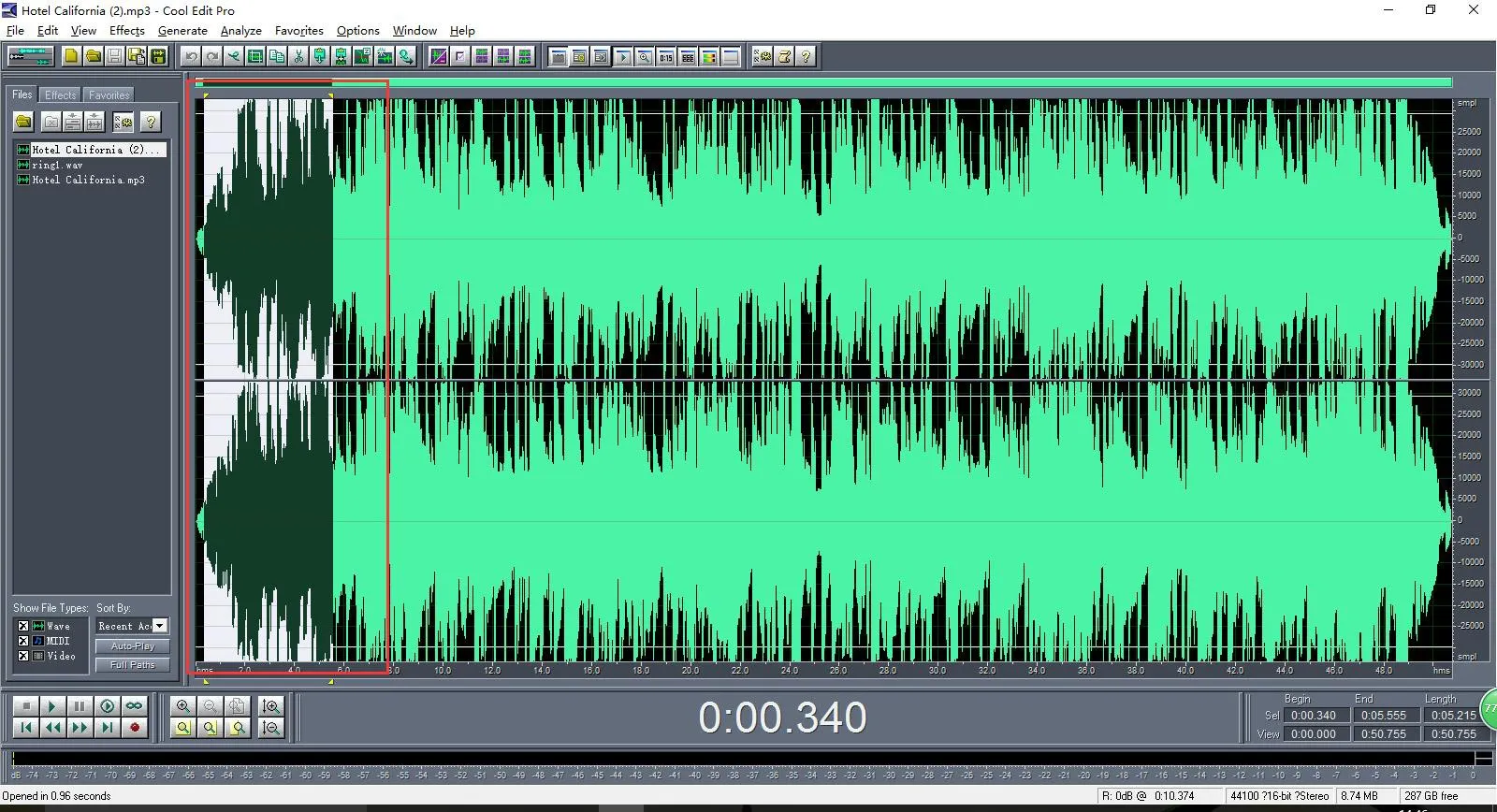
Create New File and Paste the Clip
Go to File → New, use these parameters:
- Sample Rate: 8000/16000
- Channels: Mono
- Resolution: 16-bit
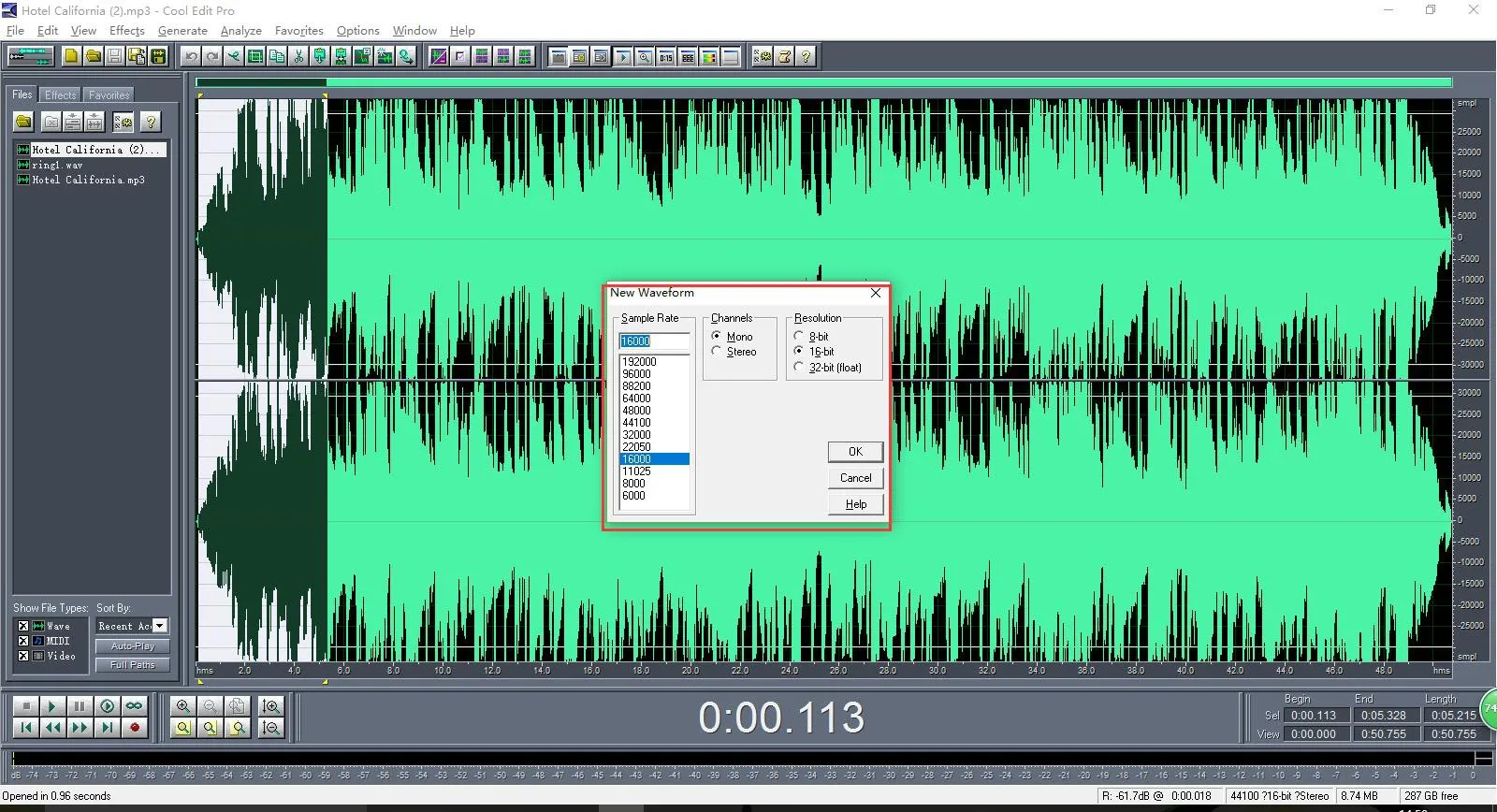
Click OK, then press Ctrl+V to paste the clip. Preview to confirm.
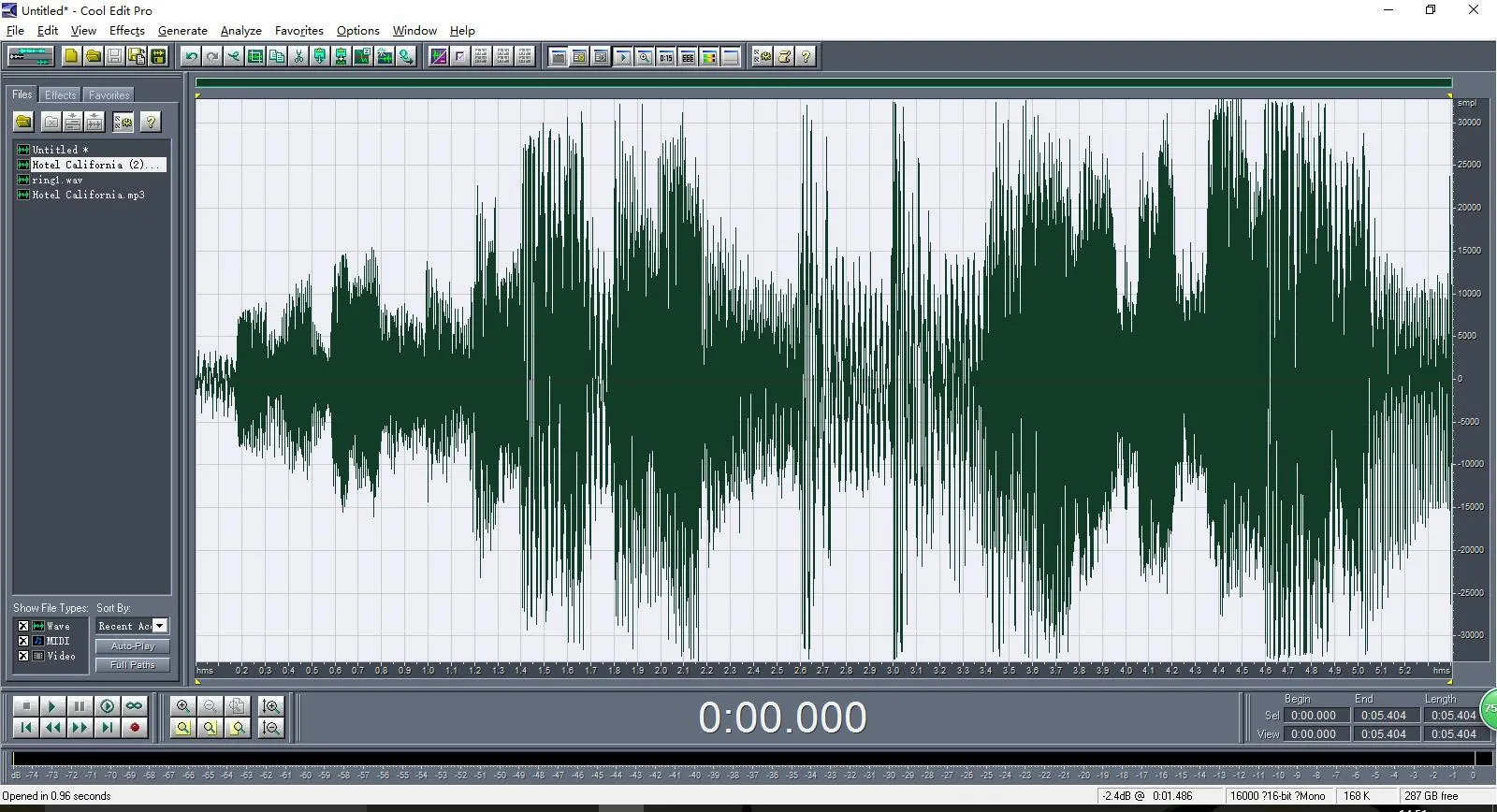
Export the File
Go to File → Save As
- File Name: ring1.wav (recommended)
- Save as Type: Windows PCM(*.wav)
The exported file is ready for BX3S/BX4 custom ringtone use.
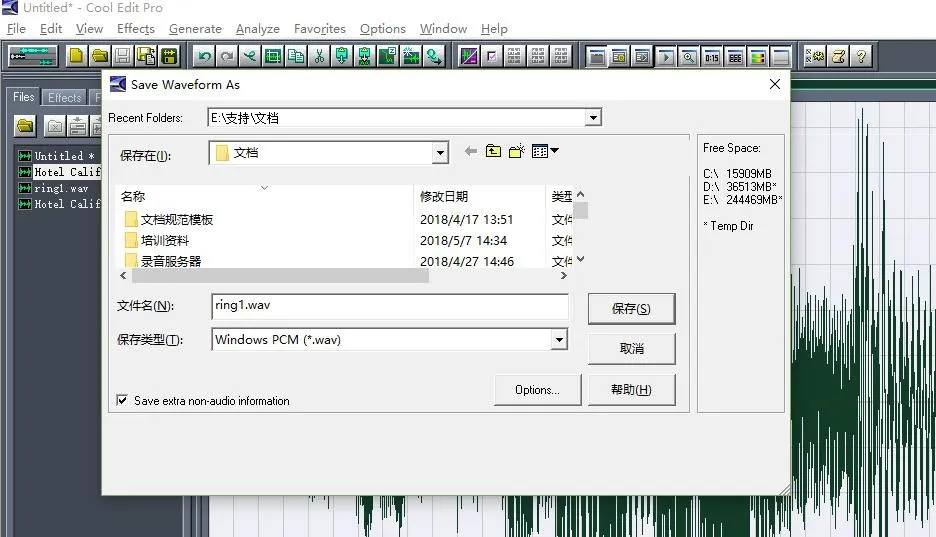
Import (Upgrade) Ringtone to Phone
BX3S/BX4 Upload Method
BX3S/BX4 do not have a dedicated ringtone upload page. Import the ringtone in the firmware upgrade section.

BX5S/BX6/BX7/BX7C/GP210/GP210i/BX4U/BX5U/BX6U Upload Method
These models have a dedicated ringtone upgrade page. Upload your ringtone file directly on the Upgrade page.
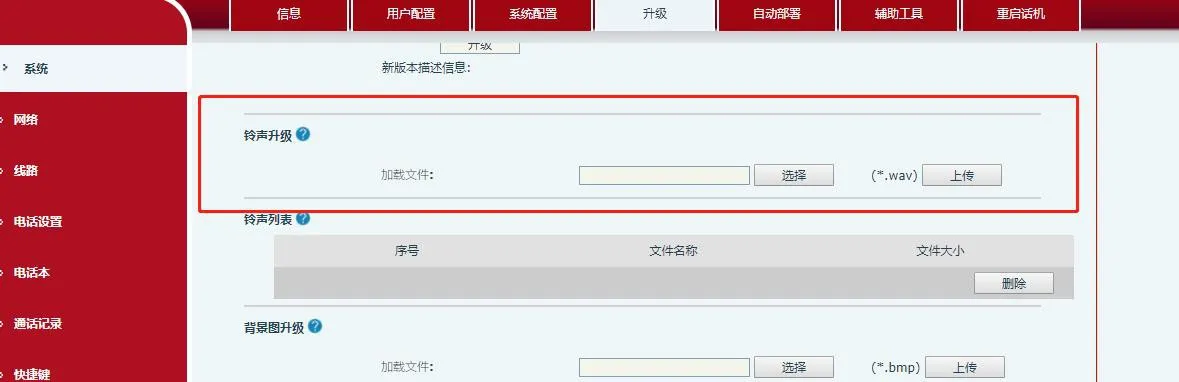
Configuration
Set for a Single SIP Line
Web Path: Account → SIP → Advanced Settings
Ring Type: Select Sound 1
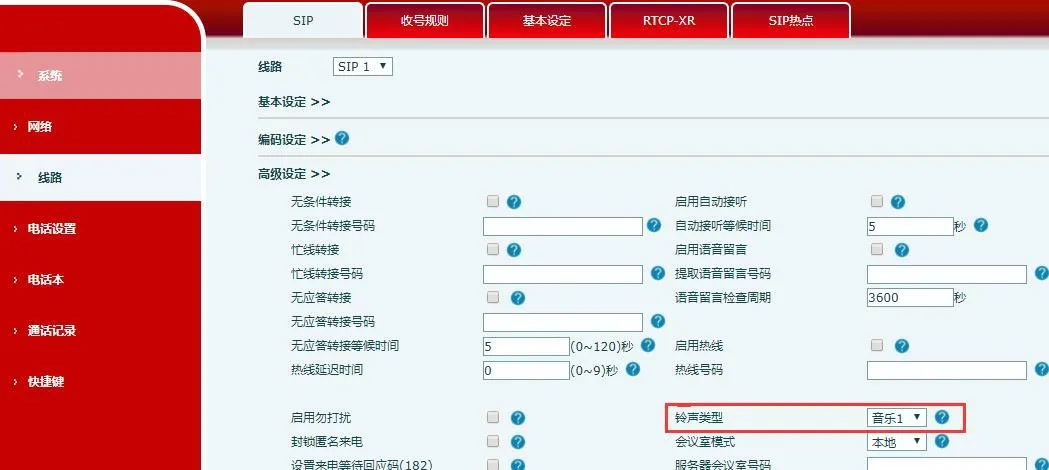
Set for All Lines (Global Default)
Web Path: Phone Settings → Voice Settings
Default Ring Type: Select Sound 1
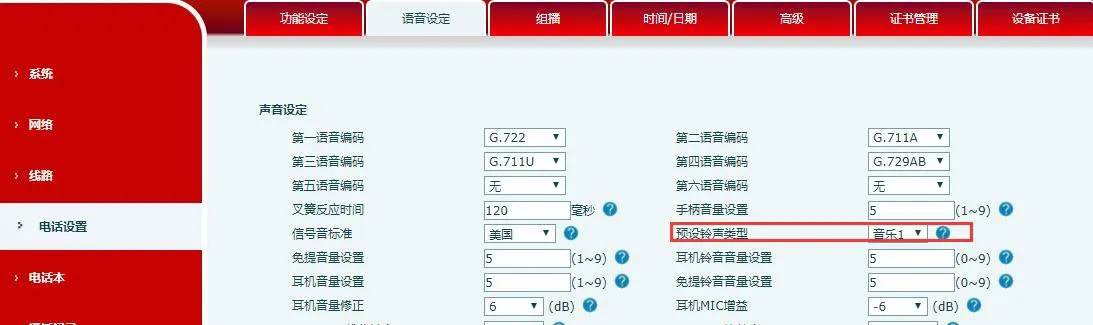
If the line’s advanced setting is set to Default, it will use the global Default Ring Type.