This document guides users through important notes for editing the phonebook using WPS or Excel. Special attention is given to contacts with Chinese names, as improper handling will result in garbled characters after importing the phonebook to the phone.
Preparation Tools:
- Phonebook exported from the IP phone (CSV format).
- Spreadsheet editor: WPS or Excel.
- Notepad (built-in Windows text editor).
Operation Steps:
Log into the phone's web interface, navigate to Phone Settings -- Phonebook, and enter contact information in the phonebook edit section, for example:
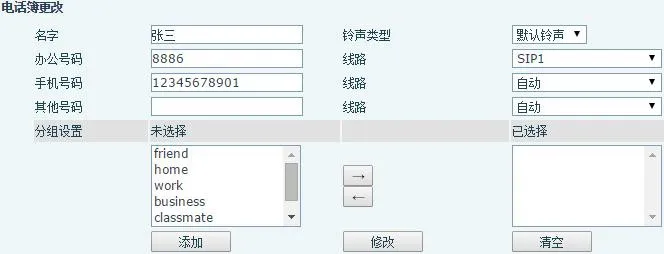
After filling in the contact details, click the Add button to create a new contact on the phone:

Under Export Contact List, click Export CSV to download the contact list in CSV format. The default filename is contact.csv. Use this file as the template; add new contacts while keeping the original format unchanged to ensure successful import.
Edit contacts with a spreadsheet tool (WPS or Excel). This guide uses WPS for demonstration. Open the exported contact.csv file and add new contact information as shown below:

Field Descriptions:
name: Contact name.work: Work number (the digits after sip:); @1 means calls to this number use Line 1 on the phone.mobile: Contact's mobile phone number.ring: Ringtone assigned for incoming calls from this contact.groups: Contact group (must use existing groups on the phone, e.g., friend, work, home).
Save the edited file. A compatibility prompt may appear:
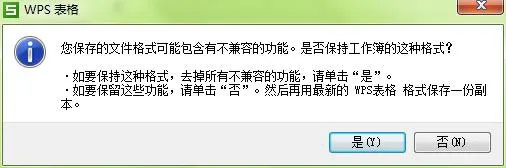
Click Yes to continue.
Directly importing the modified file will cause garbled characters, as WPS/Excel alters the file encoding. Fix this with Notepad: Open the phonebook CSV with Notepad.
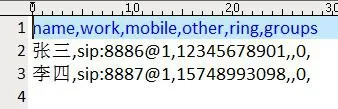
Go to File -- Save As. Set the format as shown:
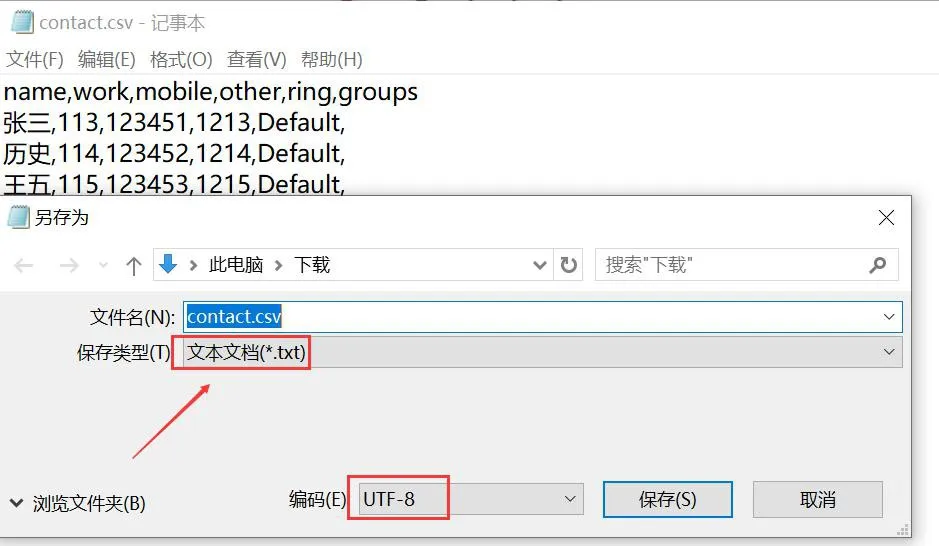
Click Save (save as contact2.csv), then import this file to the phone via the web interface. No garbled characters will appear.